
You want to clean up your whatsapp conversations. You can delete whatsapp chats in just a few taps. Maybe you need to remove a single message, an entire chat, or clear everything at once. This guide shows you easy ways to do each one. If you're curious about what happens after you Delete WhatsApp Chats, you will find answers to your most common questions here.

Key Takeaways
You can delete single chats on WhatsApp very easily. On Android, press and hold the chat, then tap the trash can. On iPhone, swipe left on the chat and tap 'Delete Chat.'
To delete group chats, you need to leave the group first. Admins must remove all members before deleting the group.
WhatsApp lets you delete messages for everyone within 2 days and 12 hours. After that time, you can only delete messages for yourself.
Use the 'Delete for Me' option to remove a message from your chat only. Pick 'Delete for Everyone' to remove it from all chats, but do it quickly.
You can delete all chats at once by going to Settings and picking 'Delete All Chats.' Make sure to back up important messages before you do this.
Archiving chats hides them but does not delete them. Use this to keep your chat list neat and still see important conversations.
Always look for important messages before deleting anything. Use the search tool so you do not lose anything important by accident.
You can use the Disappearing Messages feature to delete messages after seven days. This helps keep your chats neat without extra work.
Delete WhatsApp Chats
Cleaning up your conversations can help you stay organized. You might want to delete whatsapp chats with one person or remove a whole group chat. Let’s walk through the steps for both Android and iPhone.
Delete Individual Chats
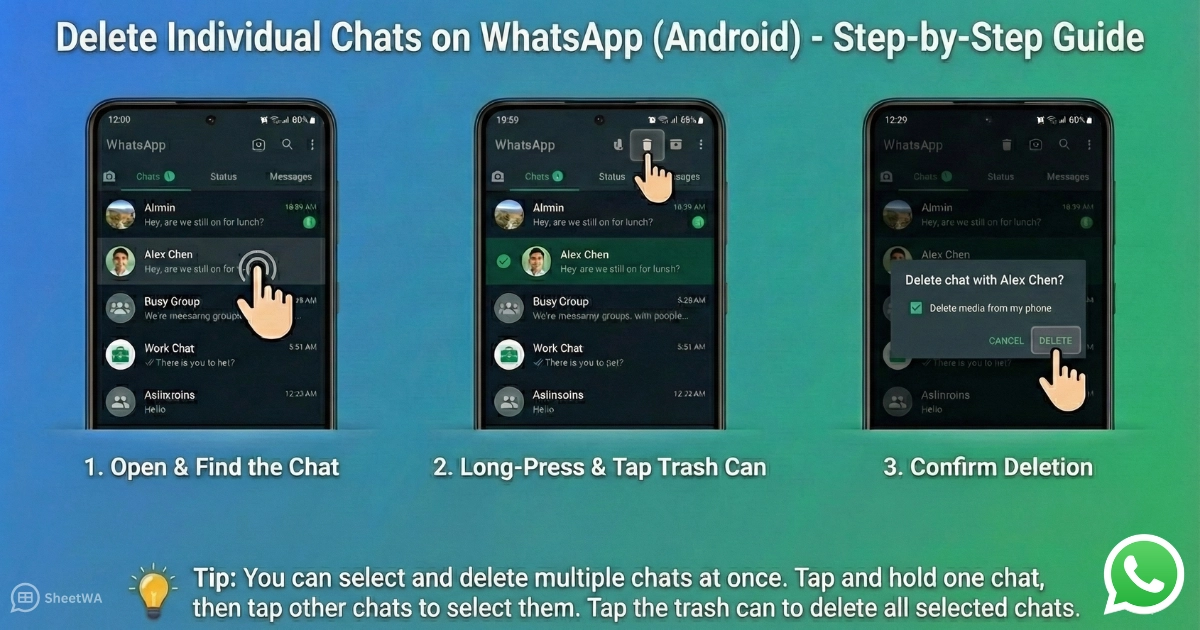
You can delete whatsapp chats with a single person or contact. This removes the chat from your chat list, but it does not delete the chat for the other person.
Android Steps
Follow these steps to delete whatsapp chats with one person on Android:
Open whatsapp and tap the "Chats" tab.
Find the chat you want to remove.
Tap and hold the chat until you see a check mark.
Tap the trash can icon at the top of the screen.
If you want to delete media files from your phone, check the box.
Tap "Delete" to confirm.
Tip:
You can select and delete multiple chats at once. Tap and hold one chat, then tap other chats to select them. Tap the trash can to delete all selected chats.
iPhone Steps
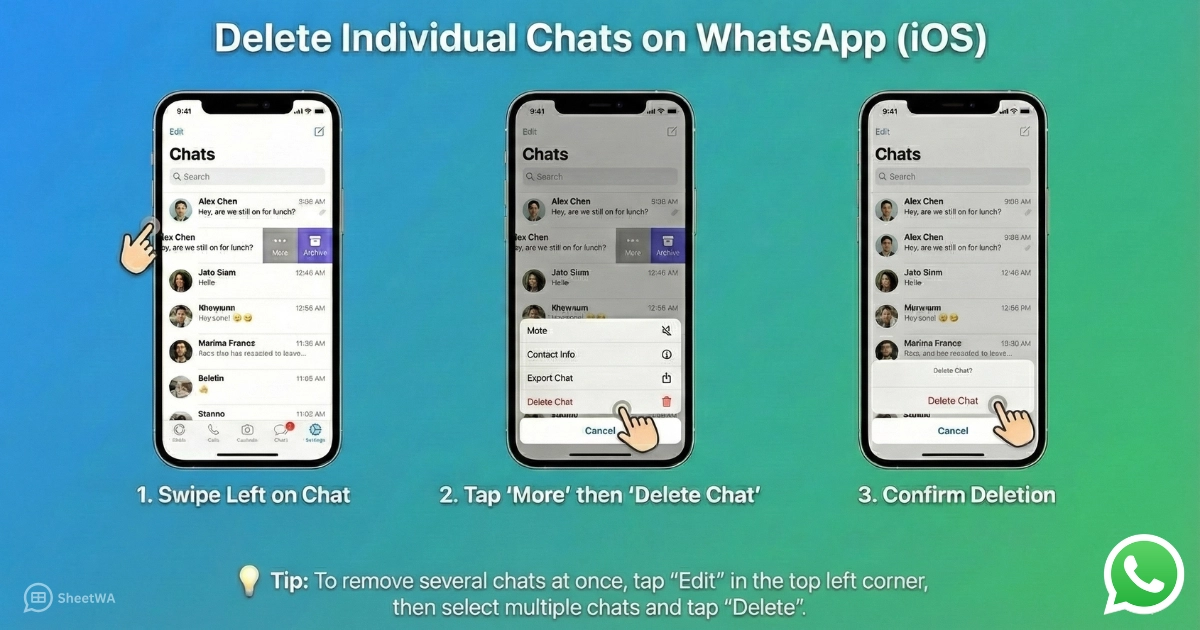
Here’s how you can delete whatsapp chats on your iPhone:
Open whatsapp and go to the "Chats" tab.
Swipe left on the chat you want to delete.
Tap "More," then tap "Delete Chat."
If you want to remove media, choose "Delete Chat" again when asked.
You can also tap "Edit" in the top left, select multiple chats, and tap "Delete" to remove several at once.
Delete Group Chats
Group chats can fill up your chat list quickly. You may want to delete whatsapp chats from groups you no longer need. The process is a bit different from deleting individual chats.
Android Steps
To delete a group chat on Android, you need to exit the group first. If you are the admin, you must remove all members before you can delete the group.
Open whatsapp and go to the group chat.
Tap the group name at the top to open group info.
If you are the admin, tap each member’s name and select "Remove."
Scroll down and tap "Exit Group." Confirm by tapping "Exit."
Tap "Delete Group" and confirm again.
iPhone Steps
Deleting a group chat on iPhone is similar. Here’s what you do:
Open whatsapp and find the group chat.
Tap the group name at the top to open group info.
If you are the admin, tap each member’s name and choose "Remove from Group."
Scroll down and tap "Exit Group." Confirm by tapping "Exit."
Tap "Delete Group" and confirm by tapping "Delete Group" again.
Note:
You must exit the group before you can delete it from your chat list. If you are the admin, you need to remove all members first.
Here’s a quick look at what you need to know about deleting group chats:
What You Need to Know | Description |
|---|---|
Exiting the Group | You must exit the group before deleting it. |
Admin Requirements | Admins must remove all members before deleting the group. |
Deletion Process | After removing members, exit and delete the group. |
Recovery | Once deleted, you cannot recover the group. Back up important info first. |
Tip:
Before you delete whatsapp chats, check if you need to save any important messages or media. Once you delete a group, you cannot get it back.
Now you know how to delete whatsapp chats for both individual and group conversations. This helps you keep your chat list tidy and makes it easier to find the messages you care about.
Delete WhatsApp Messages

Sometimes you want to delete whatsapp messages instead of the whole chat. Maybe you sent something by mistake or just want to clean up your conversation. You can delete whatsapp messages for yourself or for everyone in the chat. Let’s look at how you can do this on both Android and iPhone.
Delete Single Message
You can delete whatsapp messages one at a time. This is helpful if you only want to remove a specific message and not the whole chat.
Android Steps
Open whatsapp and go to the chat with the message you want to remove.
Tap and hold the message.
You will see options at the top. Tap the trash can icon.
Choose "Delete for Me" or "Delete for Everyone" if you want to remove it from both sides.
Confirm your choice.
Tip:
You can select more than one message by tapping other messages after you hold the first one.
iPhone Steps
Open whatsapp and find the chat with the message you want to delete.
Press and hold the message.
Tap "Delete."
Select more messages if you want.
Tap the trash can icon.
Choose "Delete for Me" or "Delete for Everyone" and confirm.
Deleting whatsapp messages on iPhone is quick. You just need a few taps to clean up your chat.
Delete for Me vs. Delete for Everyone
When you delete whatsapp messages, you see two main options: "Delete for Me" and "Delete for Everyone." These choices work in different ways.
"Delete for Me" only removes the message from your own chat. The other person or people in the chat will still see the message.
"Delete for Everyone" removes the message from both your chat and the chats of everyone who received it. This is useful if you sent something by mistake or want to take back what you said.
If you use "Delete for Everyone," the message will disappear from the chat for all users. If you use "Delete for Me," only you will not see the message anymore.
Time Limits
You cannot use "Delete for Everyone" forever. whatsapp gives you a time window to use this feature. In the past, you had just over an hour to delete whatsapp messages for everyone. Now, whatsapp lets you delete whatsapp messages for everyone up to 2 days and 12 hours after you send them.
Here’s a quick table to show the change:
Feature | Old Limit | New Limit |
|---|---|---|
Delete for Everyone | 1 hour, 8 minutes, 16 seconds | 2 days, 12 hours |
So, if you want to delete whatsapp messages for everyone, make sure you do it within this time. After that, you can only delete whatsapp messages for yourself.
What Happens After Deletion
When you delete whatsapp messages for everyone, the message will be replaced with "This message was deleted" in the chat. Everyone will see this note. If you delete whatsapp messages for yourself, the message will only disappear from your chat. Others will still see it unless they also delete whatsapp messages on their side.
Note:
Once you delete whatsapp messages for everyone, you cannot get them back. Think before you delete whatsapp messages, especially if they are important.
Deleting whatsapp messages helps you fix mistakes and keep your chats tidy. Remember, you have a limited time to use delete for everyone. After that, you can only delete whatsapp messages from your own chat.
Delete WhatsApp Messages Up to Seven Days Old
Sometimes you need to clean up messages you sent a few days ago. Maybe you made a mistake or just want to remove something from your chat. You can delete whatsapp messages up to seven days old, but you need to know the right steps and some important limits.
How to Delete Recent Messages
You can delete whatsapp messages up to seven days old if you act quickly. The process is simple, and you can do it right from your phone.
Android Steps
Open whatsapp and go to the chat with the message you want to remove.
Find the message you want to delete.
Tap and hold the message until you see a menu at the top.
Tap the trash can icon.
Choose "Delete for Me" if you only want to remove it from your chat. Pick "Delete for Everyone" if you want it gone from all chats.
Confirm your choice.
Tip:
You can select more than one message by tapping other messages after you hold the first one. This helps you delete several messages at once.
iPhone Steps
Open whatsapp and tap on the chat with the message you want to delete.
Press and hold the message.
Tap "Delete" from the menu.
Select more messages if you want.
Tap the trash can icon.
Choose "Delete for Me" or "Delete for Everyone" and confirm.
Deleting recent messages is quick and easy. Just remember, you have a limited time to use "Delete for Everyone."
Limitations for Older Messages
You might wonder what happens if you try to delete whatsapp messages up to seven days old or even older. There are some important limits you should know.
Limitation Description | Details |
|---|---|
Official Deletion Limit | You can only delete messages within seven minutes of sending. |
Hack Limitations | Both sender and receiver must have the updated version of whatsapp. |
Date Selection Issue | If you try to delete very old messages, the app may prompt you to update the date. |
Some users try to use tricks to delete messages up to five days old, but these do not always work.
If you change your phone’s date to make a message look newer, whatsapp may warn you to set the correct date before you can use the app.
The safest way is to delete whatsapp messages up to seven days old using the official steps. After that, deleting older messages becomes much harder.
Note:
Once the time limit passes, you can only delete messages for yourself. Others in the chat will still see them.
If you want to keep your chats tidy, act fast. Deleting messages soon after you send them gives you the best chance to remove them from everyone’s chat. Always check the time since you sent the message before you try to delete it.
Delete All WhatsApp Chats
Ready to start fresh? You can delete all chats in your whatsapp account with just a few taps. This is a great way to clear out old conversations and make your chat list look new again. You don’t have to remove chats one by one. Instead, you can wipe everything at once. Here’s how you can do it on Android and iPhone.
Clear All Chats at Once
Android Steps
Open whatsapp and tap the three dots in the top right corner.
Go to "Settings."
Tap "Chats."
Select "Chat history."
Tap "Delete all chats."
You can choose to delete media from your phone or keep it.
Confirm by tapping "Delete."
You’ll see your chat list empty right away. Group chats will stay, but the messages inside will disappear.
iPhone Steps
Open whatsapp and tap "Settings" at the bottom right.
Tap "Chats."
Tap "Delete All Chats."
Enter your phone number if asked.
Decide if you want to keep or remove media from your device.
Tap "Delete All Chats" to confirm.
Your chat list will clear out. You’ll still see group chats, but all messages inside will be gone.
What to Know Before Clearing
Before you delete all chats, you should think about a few things. You might want to save important messages or photos. Once you delete all chats, you can’t get them back unless you have a backup.
Tip:
Back up your chats before you delete all chats. This way, you can restore them if you change your mind.
Here’s what you need to know:
You can back up your chats to Google Drive (Android) or iCloud (iPhone). Make sure you have enough space for the backup.
On Android, open whatsapp, tap the three-dot menu, go to Settings > Chats > Chat backup, pick a backup frequency, and choose your Google account. You can also decide if you want to use Wi-Fi only or cellular data.
On iPhone, turn on iCloud backups in whatsapp settings and set how often you want to back up.
If you ever want to restore your chats, you need a backup. On Android, uninstall and reinstall whatsapp, then follow the prompts to restore from Google Drive. On iPhone, uninstall and reinstall whatsapp, verify your phone number, and tap "Restore Chat History" when you see the option.
Step | Android | iPhone |
|---|---|---|
Backup Location | Google Drive | iCloud |
Start Backup | Settings > Chats > Chat backup | Settings > Chats > Chat Backup |
Restore Chats | Reinstall app, follow prompts | Reinstall app, tap Restore |
If you want a clean slate, delete all chats. Just remember to back up first if you want to keep anything important. This keeps your memories safe and gives you peace of mind.
What Happens After Deleting
Are Messages Gone Forever?
You might wonder if your messages disappear for good when you delete them. The answer is not always simple. When you delete a message or chat, it vanishes from your screen. However, it does not always mean the message is gone forever.
WhatsApp chat backups play a big role here. The app saves your chats in two places: on your phone and in the cloud. If you use an Android device, your chats go to Google Drive. If you use an iPhone, your chats go to iCloud. This means your messages can stay safe even if you lose your phone. If you delete a message but have a recent backup, you can get that message back by restoring the backup.
Note:
If you uninstall WhatsApp and your backup is not up to date, you might lose your chats for good. Always check your backup settings before you delete anything important.
Can Deleted Messages Be Recovered?
You can often recover deleted messages if you act quickly and use whatsapp chat backups. Here’s how you can do it:
Uninstall WhatsApp from your device.
Reinstall WhatsApp and open the app.
Enter your phone number to verify your account.
When prompted, tap "Restore" to get your chats back from the backup.
You can use both cloud backups and local backups for this process. If you have a backup from before you deleted the message, you will see the message again after restoring. Some people try third-party recovery tools, but these apps are not always safe or reliable. It’s best to stick with official whatsapp chat backups.
Tip:
If you want to keep your chats safe, set up automatic whatsapp chat backups. This way, you can always restore your messages if you need to.
Impact on Other Users
Deleting a message or chat does not always remove it for everyone. Here’s what you need to know:
If you use "Delete for Everyone," both you and the other person must have the latest version of WhatsApp.
Sometimes, people can still see media files on their device, even after you delete the message.
If someone reads your message before you delete it, they will still know what you sent.
The app does not tell you if deleting for everyone fails.
You have a time limit to delete messages for everyone, so act fast.
Action | What Others See |
|---|---|
Delete for Me | Only you lose the message |
Delete for Everyone (success) | Others see "This message was deleted" |
Delete for Everyone (fail) | Others still see your message |
Deleting messages helps you control your chats, but it does not always erase everything from everyone’s device. Always double-check before you send something important.
Tips for Managing WhatsApp Chats
Keeping your WhatsApp organized makes life easier. You can find important messages faster and avoid clutter. Here are some smart ways to manage your chats.
Archive vs. Delete
You might wonder if you should archive or delete a chat. Archiving hides a chat from your main chat list, but it does not remove the chat or its messages. You can always bring it back when you need it. This is great if you want to clean up your chat screen without losing anything. Deleting, on the other hand, removes the chat and all its messages from your account. Once you delete a chat, you cannot get it back unless you have a backup.

Tip:
Archive chats you want to keep but do not need to see every day. Delete chats only when you are sure you do not need them anymore.
Here’s a quick comparison:
Action | What Happens |
|---|---|
Archive | Hides chat, keeps all messages safe |
Delete | Removes chat and messages from your account |
Search Before Deleting
Before you delete a chat, you might want to check if it has any important messages. WhatsApp makes searching easy.
Tap the search icon at the top of the app. Type a word or phrase you remember. WhatsApp will show all messages that match.
To search inside one chat, open the chat, tap the person’s name, and pick “Chat Search”. Now you can find messages just in that conversation.
This helps you make sure you do not lose anything important by mistake.
Note:
Always search for names, dates, or keywords before you delete. You might find something you want to save.
Auto-Delete Settings
WhatsApp has a feature called Disappearing Messages. This tool helps you keep your chats tidy without extra work. When you turn it on, messages in the chat will delete themselves after seven days. This is perfect if you want more privacy or do not want old messages piling up.
To use Disappearing Messages:
Open WhatsApp.
Go to the chat where you want messages to disappear.
Tap the chat tab.
Press the Disappearing Messages option.
Choose how long you want messages to stay, or turn it off.
When you set Disappearing Messages, WhatsApp will remove messages after the time you pick. You do not have to do anything else.
Using these tips, you can keep your WhatsApp neat and easy to use. Archive chats you want to hide, search before you delete, and try auto-delete for less clutter. You stay in control of your conversations!
You now know how to delete WhatsApp chats and messages in just a few taps. The process is quick and easy. Remember, you have up to 2 days and 12 hours to delete messages for everyone.
Here’s a handy table:
Action | Old Time Limit | New Time Limit |
|---|---|---|
Delete message after sent | 1 hour, 8 minutes, 16 seconds | 2 days, 12 hours |
Keep these tips in mind for a cleaner chat list. If you still have questions, check the FAQ for more help!

FAQ
Can I delete a WhatsApp chat without the other person knowing?
No, WhatsApp does not notify the other person when you delete a chat. The chat disappears only from your phone. The other person still sees the conversation on their device.
What happens to media files when I delete a chat?
If you choose to delete media, WhatsApp removes photos, videos, and files from your phone. If you skip this, media stays in your gallery or files. The other person keeps their copies.
Can I recover deleted WhatsApp messages?
You can restore deleted messages if you have a recent backup. Uninstall WhatsApp, reinstall it, and follow the prompts to restore your chat history. Without a backup, you cannot get messages back.
How do I delete multiple chats at once?
On Android: Tap and hold one chat, then tap others to select them. Tap the trash can.
On iPhone: Tap "Edit," select chats, then tap "Delete."
This saves you time if you want to clean up quickly.
Will deleting a group chat remove me from the group?
No, deleting a group chat only clears it from your chat list. You stay a group member. To leave, you must exit the group first.
Why can't I delete messages for everyone?
You can only delete messages for everyone within 2 days and 12 hours. Both you and the other person must use the latest WhatsApp version. If you miss the time limit, you can only delete for yourself.
