
You want to keep your messages safe from others. The easiest way is to use the lock chat on whatsapp feature. This new tool lets you protect private chats. You can use your phone’s fingerprint, face ID, or a secret code. Many WhatsApp users worry about data sharing. They also worry about location tracking and public profile visibility.
Built-in privacy tools help you control your chats. They also help you protect your personal information.
Key Takeaways
Lock your chats on WhatsApp to keep messages safe from others.
You can use your fingerprint, face ID, or a secret code to open locked chats.
Locked chat notifications do not show what the message says, so your privacy is better.
You can lock as many chats as you want, even group chats and personal chats.
Check for WhatsApp updates often to get new privacy tools.
Make a secret code to hide your locked chats even more.
Change your notification settings so messages do not show on your lock screen.
Look at your privacy settings often to choose who sees your info.
Lock Chat Feature Overview
What Is the Lock Chat Feature
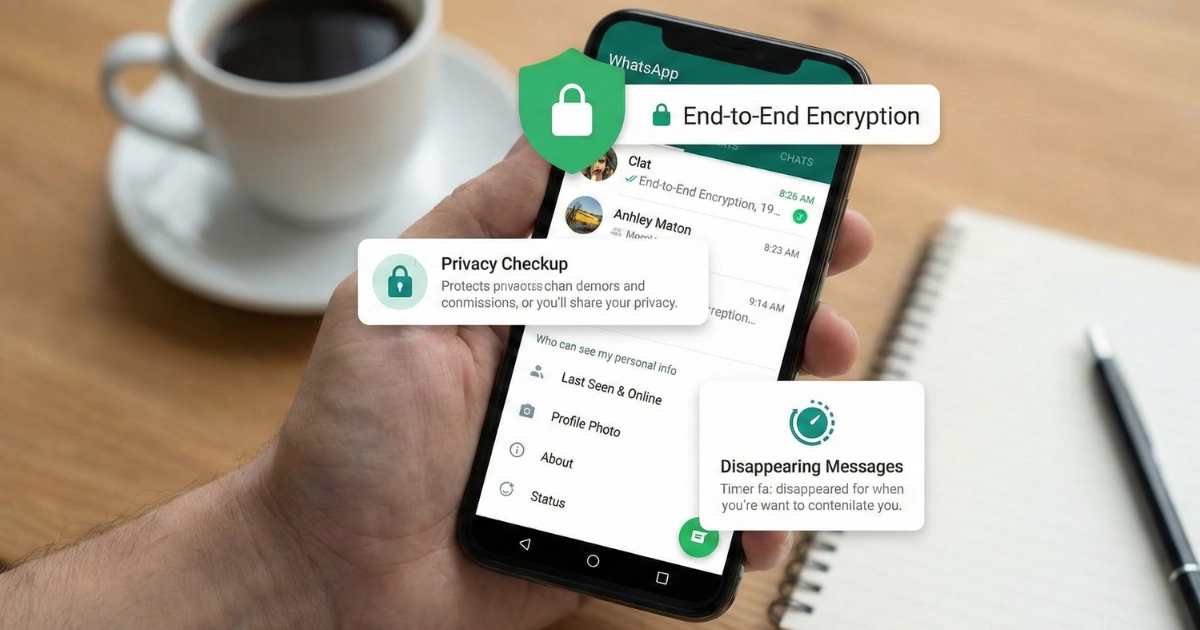
You might wonder what the lock chat feature actually does. This tool lets you protect your most private conversations on WhatsApp. You can pick any chat—personal or group—and lock it away from your main inbox. When you lock a chat, WhatsApp moves it to a hidden folder. Only you can open this folder using your fingerprint, face ID, or a secret code.
Tip: If you share your phone with family or friends, this feature keeps your messages safe from curious eyes.
The chat lock feature rolled out globally to help you keep your chats secure. You can lock as many chats as you want. The contents of these chats stay hidden, even in your notifications. This means no one can read your messages unless they unlock the chat.
Privacy Benefits
You get a lot of privacy benefits when you use this feature. Here are some of the main advantages:
You control who sees your sensitive conversations.
Locked chats stay out of your main inbox, so they are harder to find.
Notifications from locked chats do not show message content.
Only you can unlock these chats with your fingerprint, face, or code.
The lock chat feature gives you more privacy than older tools. Before, WhatsApp used two-factor authentication and end-to-end encryption. These tools protected your data from hackers and online threats. They did not stop someone from reading your chats if they had your phone. Now, you can stop anyone from opening your private messages, even if they hold your device.
Here’s a quick look at how the feature works:
Feature | Description |
|---|---|
Authentication | You can use face unlock, pin/passcode, or fingerprint to lock chats. |
Message Storage | Locked messages move to a special folder. Only you can access it. |
Notification Hiding | WhatsApp hides notifications for locked chats to keep things private. |
WhatsApp also uses passkey-based encryption for chat backups. You can secure your backups with your fingerprint, face, or screen lock. This adds another layer of safety to your messages.
Requirements to Use
You need a few things before you can use the lock chat feature:
A phone with fingerprint, face unlock, or a screen lock option.
The latest version of WhatsApp. Some features first appeared in beta versions 2.23.8.2 and 2.24.8.4.
Enough storage space for app updates.
If you meet these requirements, you can start locking your chats right away. Just update WhatsApp and set up your device’s security options. You do not need any extra apps or tools.
Note: If you cannot find the feature, check for app updates in your app store. Some older devices or WhatsApp versions may not support it yet.
Lock Chat on WhatsApp: Android
Step-by-Step Instructions
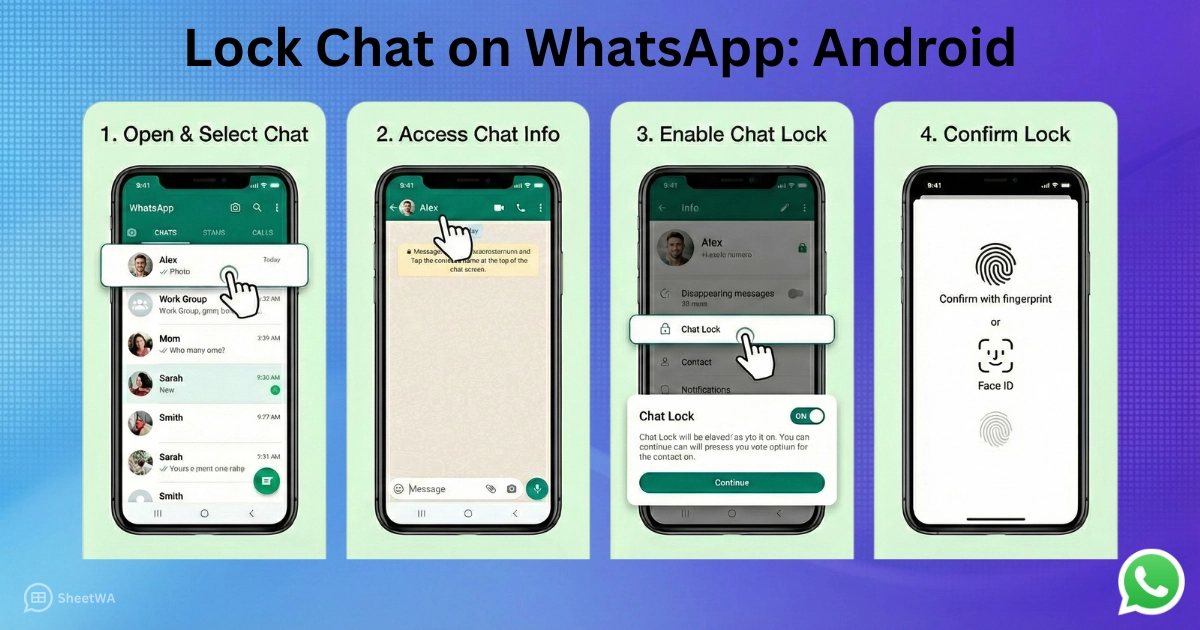
Ready to keep your private messages safe? You can lock chat on whatsapp using your Android phone. Here’s how you do it:
Open WhatsApp and Select Chat
Open WhatsApp and go to the Chats tab.
Find the chat you want to protect. You can pick a personal or group chat.
Access Chat Options
Long-press the chat you want to lock.
Tap the three-dot menu in the top-right corner of your screen.
Enable Chat Lock
Scroll down and look for the Chat Lock option.
Tap it and then turn chat lock on by clicking the continue button.
Confirm the lock using your fingerprint, Face ID, or passcode.
Tip: If you use fingerprint or face unlock on your device, WhatsApp will ask you to scan your fingerprint or face to finish the process. This keeps your chat extra secure.
Set Up Secret Code
Want even more privacy? You can hide your locked chats with a secret code. Here’s how you set it up:
Pull down on WhatsApp’s home screen to open the list of locked chats. Enter your device password or use your fingerprint.
Tap the three-dot menu at the top right.
Go to Chat Lock settings and turn on ‘Hide locked chats’.
Create a secret code you can remember. You can use a word or even an emoji.
To see your locked chats, type your secret code in the WhatsApp search bar. You won’t see these chats in your regular chat list or by pulling down the home screen.
Note: Pick a secret code that’s easy for you to remember but hard for others to guess. You can use a mix of letters, numbers, or emojis.
Here’s a quick table to help you choose a strong secret code:
Secret Code Ideas | Security Level | Easy to Remember? |
|---|---|---|
Simple word | Low | Yes |
Emoji sequence | Medium | Yes |
Word + number | High | Yes |
Manage Locked Chats
You can organize and change your locked chats anytime. Here’s what you can do:
Open WhatsApp on your Android phone.
Go to the Locked chats folder by pulling down the home screen or using your secret code in the search bar.
Tap Settings in the Locked chats folder.
Select the Secret Code option if you want to change or remove your code.
Tap Create Secret Code to make a new one. Confirm your code and tap Done.
To hide your Locked chats folder, toggle ‘Hide Locked Chats’ on in the settings.
Alert: If you forget your secret code, you can reset it from the Locked chats settings. Just follow the prompts to create a new code.
You can also unlock or remove a chat from the locked folder. Just open the chat, tap the three-dot menu, and turn off the lock. The chat will move back to your main inbox.
Lock chat on whatsapp gives you control over your privacy. You decide which chats to hide and how to access them. With these steps, you can keep your messages safe from anyone who picks up your phone.
Lock Chat on WhatsApp: iOS
You want to keep your messages private on your iPhone. You can use the lock chat on whatsapp feature to hide your conversations from anyone who picks up your device. Let’s walk through the steps together.
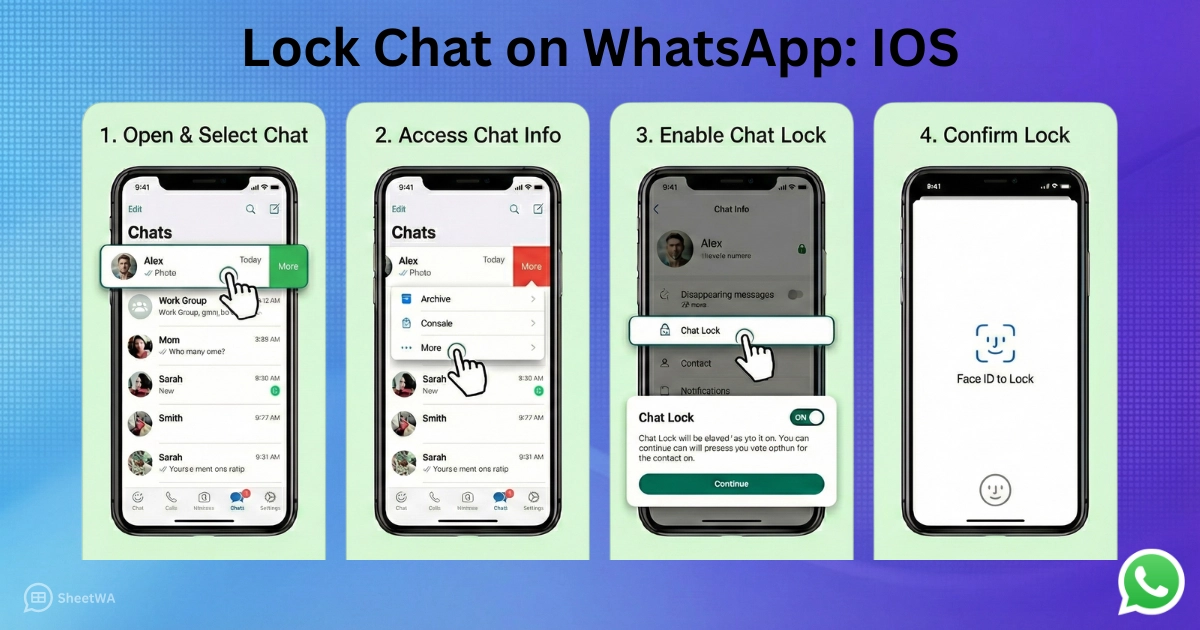
Step-by-Step Instructions
Open WhatsApp and Select Chat
Tap the WhatsApp icon on your home screen.
Go to the Chats tab at the bottom.
Find the chat you want to protect. You can choose a personal chat or a group chat.
Access Chat Info
Swipe left on the chat you want to lock.
Tap “More” to open extra options.
Select “Chat Info” from the menu.
Enable Chat Lock
Scroll down until you see the “Chat Lock” option.
Tap it to start the process.
Tap “Turn Chat Lock On” when prompted.
Use Face ID, Touch ID, or your device passcode to confirm.
Tip: If you use Face ID or Touch ID on your iPhone, WhatsApp will ask you to scan your face or fingerprint. This step keeps your chat extra secure.
Now, your chat moves to a hidden folder. Only you can unlock it with your face, fingerprint, or passcode.
Set Up Secret Code
You can make your locked chats even harder to find. WhatsApp lets you set up a secret code. Here’s how you do it:
Open WhatsApp and pull down on the Chats screen.
Enter your Face ID, Touch ID, or passcode to see the locked chats folder.
Tap the settings icon in the locked chats folder.
Choose “Hide Locked Chats.”
Create a secret code. You can use a word, a number, or even an emoji.
To view your hidden chats, type your secret code in the WhatsApp search bar.
Note: Pick a code that’s easy for you to remember but hard for others to guess. You can use a mix of letters, numbers, or emojis.
Here’s a table with some ideas for secret codes:
Secret Code Type | Security Level | Easy to Remember? |
|---|---|---|
Simple word | Low | Yes |
Emoji combo | Medium | Yes |
Word + number | High | Yes |
If you forget your secret code, you can reset it in the locked chats settings. Just follow the prompts to make a new one.
Manage Locked Chats
You can organize your locked chats anytime. Here’s what you can do:
Open WhatsApp and pull down on the Chats screen to see your locked chats.
Tap the settings icon in the locked chats folder.
Change your secret code or turn off “Hide Locked Chats.”
To unlock a chat, open it, tap the chat info, and turn off the lock. The chat will move back to your main inbox.
Alert: If you ever lose access to your locked chats, you can reset your secret code or use your Face ID, Touch ID, or passcode to get back in.
You control which chats to hide and how to access them. The lock chat on whatsapp feature gives you peace of mind. You decide who sees your messages and when.
Access and Unlock Locked Chats
Find Locked Chats
You might wonder where your locked chats go after you turn chat lock on. WhatsApp moves these conversations to a hidden folder, so nobody can see them in your main inbox. If you want to find your locked chats, just pull down on your chat list. You will see a special section for locked chats. Enter your fingerprint, face ID, or secret code to open this folder.
On WhatsApp Web, a dedicated tab for locked chats is coming soon. This tab will act like a secure vault, making it easy for you to access private conversations quickly. You do not need to search through your regular chats. Everything stays organized and safe.
Here’s a quick guide to finding your locked chats:
Open WhatsApp and go to your chat list.
Pull down on the screen until you see the locked chats folder.
Enter your fingerprint, face ID, or secret code.
Your locked chats will appear in a separate section.
Tip: If you set up a secret code, type it in the WhatsApp search bar to reveal your hidden chats. This keeps your private messages extra secure.
Unlock with Biometric or Code
Unlocking your chats is simple. WhatsApp gives you a few ways to do it. You can use your fingerprint, face unlock, or a secret code. If you set up a secret code, just enter it in the search bar. You can choose a word, number, or even an emoji as your code. This code is different from your phone’s passcode.
Here are the ways you can unlock your chats:
Use your fingerprint to unlock the folder.
Scan your face with Face ID or face unlock.
Enter your secret code in the search bar.
Choose an emoji or word as your secret code.
If you ever forget your code, go to chat lock settings and reset it. You can create a new code that is easy for you to remember.
Note: You control which method works best for you. Pick the one that feels safest and easiest.
What Happens After Unlock
When you unlock a chat, WhatsApp shows you the full conversation. You can read messages, reply, and send media just like you do in regular chats. The chat stays in the locked folder until you decide to move it back to your main inbox.
Here’s what you see after unlocking:
Action | What Happens |
|---|---|
Unlock with fingerprint | Chat opens in the locked folder |
Enter secret code | Hidden chats appear in the search results |
Reply or send media | You use all chat features as usual |
If you want to remove a chat from the locked folder, open the chat, tap the options, and turn chat lock off. The chat will move back to your main inbox. You can always change your secret code or unlock method in chat lock settings.
Alert: Locked chats stay private until you unlock them. Nobody else can see your messages, even if they use your phone.
You have full control over your privacy. With these steps, you can keep your conversations safe and easy to access.
Privacy Tips for WhatsApp Chats
You want to feel safe when you use WhatsApp. There are simple ways to make your chats more private. These tips help keep your messages away from people who should not see them.
Manage Notification Previews
Notification previews can show your messages on your lock screen. This means someone could read your chats without opening your phone. You can stop this by changing some settings.
Open your phone’s Settings app.
Go to ‘Notifications’ or ‘Apps & Notifications’.
Tap WhatsApp in the list.
Turn off ‘Show preview’.
You can also change notification previews in WhatsApp:
Open WhatsApp.
Tap the three-dot menu at the top.
Go to ‘Settings’.
Scroll to ‘App Lock’.
Turn on Biometric authentication.
Turn off ‘Show Content Notification’.
When you turn off notification previews, your messages stay hidden. People cannot read your chats if your phone is locked or the app is closed. You get more control over your privacy and can hide chats from anyone who looks at your screen.
Control Media Sharing
Photos, videos, and files can tell others a lot about you. You get to choose who sees your media and how it is shared.
You can pick who sees your Last Seen, Profile Photo, Groups, and Status. The ‘My contacts except…’ option lets you block certain people.
WhatsApp is testing a tool that stops media from saving to your gallery. This keeps private photos hidden. Right now, it works for chats with disappearing messages. Soon, you can use it for all chats if you want.
You can stop others from exporting chats and auto-downloading media. Change these options in your chat privacy settings.
Tip: If you share private chats, check your media settings before sending files. You can stop unwanted downloads and keep your gallery neat.
Update Security Settings
You should check your security settings often. This helps you stay safe and keeps your chats private.
Setting | Recommended Configuration |
|---|---|
Last seen & online | Nobody |
Profile photo | Everyone |
About | Everyone |
Groups | My contacts |
Status | My contacts |
Calls | Silence unknown callers |
Live location | Regularly review visibility list |
Protect IP address in calls | Toggle on in Privacy settings |
Security notifications | Enable in Account settings |
End-to-end encrypted backup | Enable in Chat backup settings |
You can also:
Turn on two-step verification.
Change group privacy settings.
Use disappearing messages.
Use chat locks.
Try these steps for more privacy:
Pick who can see your profile picture and status.
Block people you do not want to talk to.
Silence calls from people you do not know.
Control who can add you to group chats.
Turn off read receipts for more privacy.
Remember: Changing your privacy settings makes it harder for others to see your information. You get to decide who can see your activity and who cannot.
With these tips, you can protect your chats and hide your conversations. You keep your private messages safe. You are in charge of your WhatsApp privacy.
Troubleshooting Chat Lock Issues
You might run into problems when you try to lock your chats on WhatsApp. Don’t worry! You can fix most issues with a few simple steps. Let’s look at the most common problems and how you can solve them.
Lock Feature Not Working
Sometimes, you tap the chat lock option, but nothing happens. You might not see the feature at all. Here are a few reasons why this happens:
You use an old version of WhatsApp. The chat lock feature needs the latest update.
Your phone does not have fingerprint or Face ID set up. WhatsApp needs device authentication to work.
The feature is not available in your country yet. WhatsApp rolls out new tools slowly.
Tip: Update WhatsApp in your app store. Set up fingerprint or Face ID in your phone’s settings. If you still don’t see chat lock, check back later. WhatsApp adds new features over time.
If you still have trouble, restart your phone. Sometimes, a simple restart helps apps work better.
Forgot Secret Code
You set a secret code to hide your locked chats. Now, you can’t remember it. Don’t panic! You can reset your code and get back into your chats. Just follow these steps:
Open WhatsApp and go to Settings.
Tap Privacy Settings.
Find the ‘Chat Lock’ option.
Tap on ‘Chat Lock’.
Unlock and clear your locked chats.
Select the ‘Unlock and Clear’ option.
After you clear your locked chats, you can set a new secret code. Make sure you pick something easy for you to remember. You can use a word, number, or emoji. Write it down somewhere safe if you worry about forgetting again.
Note: When you unlock and clear locked chats, WhatsApp moves them back to your main inbox. You don’t lose your messages.
Device Compatibility
You want to use chat lock on all your devices. Not every device supports this feature. Here’s a quick look at which devices work and which ones don’t:
Device Type | Compatibility | Limitations |
|---|---|---|
Mobile (Android and iOS) | ✅ Yes | None specified |
Tablets (Android and iPad) | ❌ No | Use screen lock feature instead |
If you use WhatsApp on your phone, you can lock chats with no problem. Tablets do not support chat lock yet. You can use your tablet’s screen lock to keep WhatsApp private.
😊 Good to know: WhatsApp updates its features often. You might see chat lock on tablets in the future.
If you switch phones, make sure you set up fingerprint or Face ID again. You need device authentication for chat lock to work.
You can solve most chat lock problems by updating your app, setting up device security, and following these steps. You keep your chats safe and private!
You can now keep your WhatsApp chats safe from others. Locking chats lets you choose who can see your messages. You can use your fingerprint, face ID, or a secret code to protect them.
Don’t forget, checking your privacy settings often keeps you safer.
Use these tools and make chat security part of your routine. Your messages should always stay private. 😊

FAQ
How many chats can you lock on WhatsApp?
You can lock as many chats as you want. There’s no limit. Just pick the chats you want to keep private and use the lock feature.
Can you lock group chats too?
Yes! You can lock both personal and group chats. This keeps your group conversations hidden from anyone who uses your phone.
What happens if you uninstall WhatsApp?
If you uninstall WhatsApp, your locked chats stay safe. When you reinstall and log in, you need to set up your device authentication again to access locked chats.
Can you use chat lock on WhatsApp Web?
Not yet. WhatsApp is working on adding chat lock to the web version. For now, you can only use chat lock on your phone.
Will locked chats show up in notifications?
No, notifications from locked chats hide message content. You only see that you got a message, not what it says.
What if you forget your secret code?
Don’t worry! You can reset your secret code in the locked chats settings. Follow the prompts to make a new code and get back into your chats.
