

Muting a chat on WhatsApp takes just a few taps. You can easily mute a chat on WhatsApp on both iOS and Android devices. If you want fewer interruptions, follow these easy steps:
Open WhatsApp on your phone.
Find the chat or group you want to mute.
Tap on the contact or group name, then select mute notifications.
You will learn how to mute a chat on WhatsApp, unmute, and manage your notifications with ease.

Key Takeaways
Muting a chat on WhatsApp stops notifications, but you still get messages quietly.
You can mute chats for 8 hours, 1 week, or forever.
Muting helps you avoid distractions, so you can focus better.
You can read messages in muted chats when you open the app.
You can unmute a chat anytime if you want to get notifications again.
You can mute group chats too, which helps with busy conversations.
Muting does not block people or erase messages; it just stops notifications.
Check muted chats often so you do not miss important messages.
Mute a Chat on WhatsApp: Overview
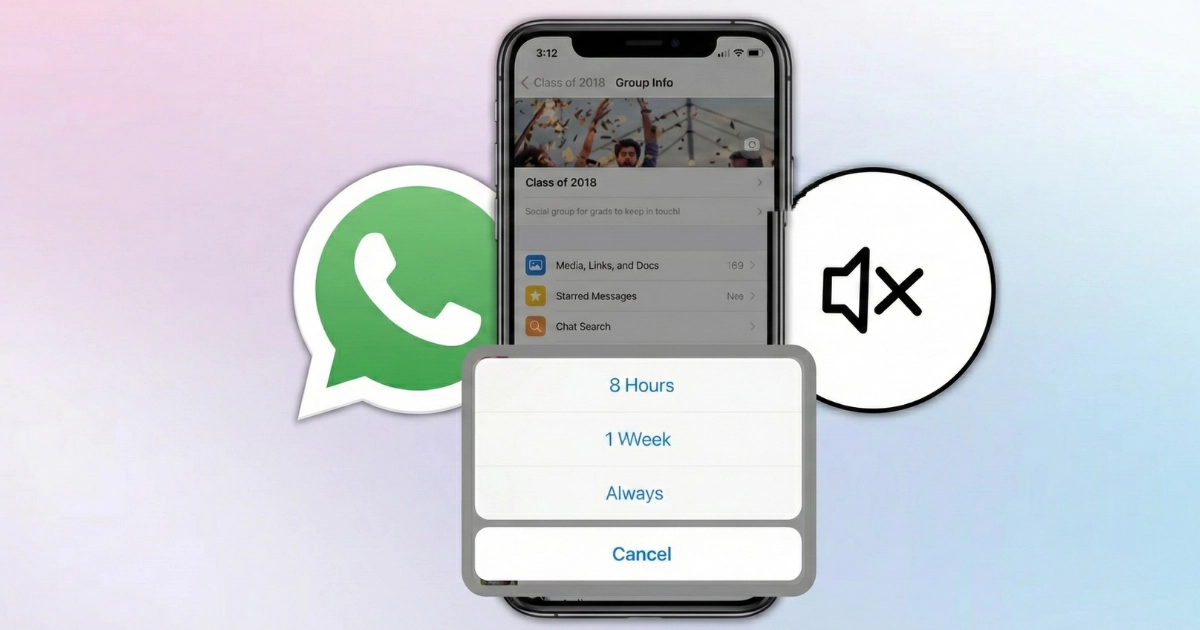
What Muting Does
When you mute a chat on WhatsApp, you stop notifications from popping up for that conversation. You still get messages, but your phone stays quiet. You can check the chat whenever you want, but you won’t see alerts or hear sounds for new messages from that chat. This helps you focus on what matters without constant interruptions.
Tip: Muting a chat doesn’t block the person or group. You just control how often you see or hear new messages.
When to Mute a Chat
Sometimes, chats get noisy. You might feel overwhelmed by constant buzzing or banners. Here are some common reasons people choose to mute:
You join a busy group chat and messages flood in all day.
You want to mute all messages except for mentions or replies that matter to you.
You get lots of spam or commercial messages and want peace from unwanted notifications.
Muting a chat is useful when you need to concentrate, sleep, or just take a break from your phone. You can always unmute later if you change your mind.
What Happens After Muting
After muting a chat, you notice a few changes in how WhatsApp notifications work. Take a look at this table to see what’s different:
Change in Notification Behavior | Description |
|---|---|
Muting Duration | You pick how long to mute: 8 hours, 1 week, or always. |
Selective Notifications | You still get alerts for mentions or direct replies, even when muted. |
Focus on Important Messages | WhatsApp lets you prioritize notifications, so you only see what matters most in active groups. |
You keep getting messages in the muted chat, but your phone doesn’t buzz or light up for every new text. If someone tags you or replies directly, you might still see a notification. This way, you don’t miss out on important updates while keeping distractions low.
Note: Muting a chat is a smart way to manage your time and attention. You stay in control of your conversations and decide when to check your messages.
How to Mute a Chat on WhatsApp (iOS)
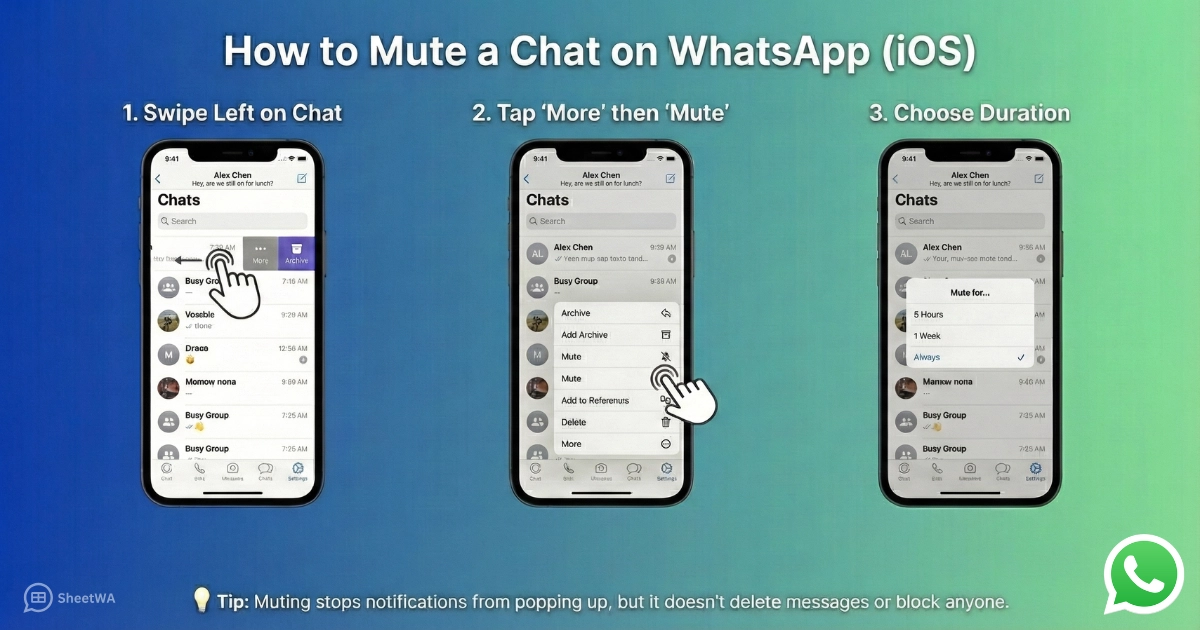
Step-by-Step Guide
Ready to mute a chat on WhatsApp using your iPhone? You can do it in just a few taps. Here’s how you take control of your notifications and keep your phone quiet when you need it.
Open WhatsApp and Find the Chat
First, grab your iPhone and open WhatsApp. You’ll see your list of chats right away. Scroll through and find the chat or group that’s sending too many messages. Maybe it’s a busy group or a friend who loves to text all day.
Swipe Left and Tap 'More'
Once you spot the chat, swipe left on it. This action reveals a few options. Tap on ‘More’ to see extra settings for that conversation. You don’t need to open the chat—just swipe and tap.
Select 'Mute' and Choose Duration
Now, tap ‘Mute’. WhatsApp lets you pick how long you want to mute a chat. You get three choices:
Duration Option | Description |
|---|---|
8 hours | Mute a chat for 8 hours |
1 Week | Mute a chat for 1 week |
Always | Mute a chat indefinitely (forever) |
Pick the duration that fits your needs. If you want a break for the afternoon, choose 8 hours. If you need peace for a week, select 1 week. Want to mute a chat on WhatsApp forever? Go with ‘Always’. After you choose, WhatsApp will stop sending notifications for that chat. You’ll still get messages, but your phone stays silent.
Tip: Muting a chat doesn’t delete messages or block anyone. You just stop notifications from popping up.
Unmute a Chat on iOS
Sometimes you change your mind. Maybe you muted a chat last week and now you want to hear from that person or group again. Unmuting is easy. Just follow these steps:
Open WhatsApp on your iPhone.
Go to the ‘Status’ tab at the bottom of the screen.
Scroll down to the ‘Muted Updates’ section. Here, you’ll find contacts you muted.
Swipe left on the contact’s status you want to unmute.
Tap ‘Unmute’ to start seeing their status updates again.
You can also unmute a chat by opening the conversation, tapping the contact or group name at the top, and selecting ‘Unmute’. This brings notifications back for that chat.
Note: You stay in control. You can mute a chat, unmute it, and adjust notifications whenever you want.
Muting a chat on WhatsApp helps you focus and keeps distractions away. You decide when you want to check messages, and you never miss important updates when you’re ready to unmute.
Mute a Chat on WhatsApp (Android)
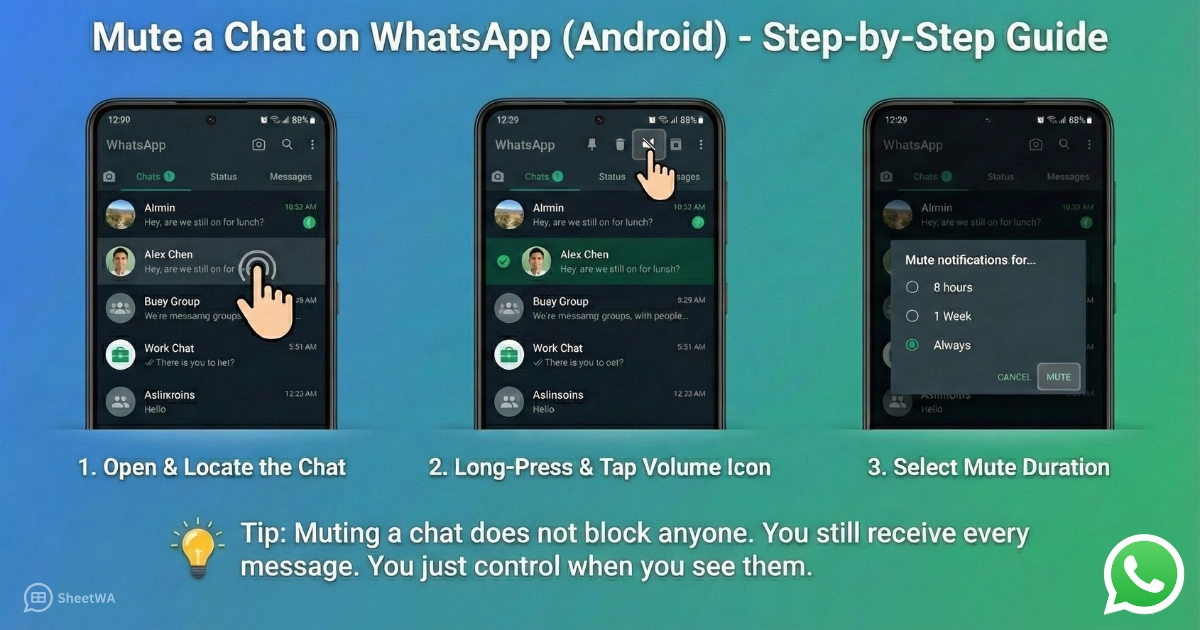
Step-by-Step Guide
You want fewer notifications. You want to focus on what matters. You can mute a chat on WhatsApp in just a few steps on your Android phone. Let’s walk through the process together.
Open WhatsApp and Locate the Chat
Start by unlocking your phone. Tap the WhatsApp icon. You see your list of chats. Scroll until you find the chat or group that keeps buzzing. Maybe it’s a group with lots of messages or a friend who sends texts all day.
Long-Press and Tap Volume Icon
Press and hold the chat you want to mute. A menu appears at the top of your screen. Look for the speaker or volume icon. Tap it. This is the shortcut for muting a chat. You don’t need to open the chat. Just long-press and tap.
Select Mute Duration
WhatsApp gives you three choices for how long you want to mute notifications:
Duration | What Happens |
|---|---|
8 Hours | You get peace for the rest of the day. |
1 Week | You stay quiet for seven days. |
Always | You mute a chat on WhatsApp forever. |
Pick the option that fits your needs. If you want a break for a few hours, choose 8 hours. If you need a longer pause, select 1 week. If you never want notifications from this chat, tap Always. After you choose, WhatsApp stops sending alerts for new messages in that chat. You still get the messages, but your phone stays silent.
Tip: Muting a chat does not block anyone. You still receive every message. You just control when you see them.
Unmute a Chat on Android
You might change your mind. Maybe you muted a chat last week and now you want to see notifications again. Here’s how you unmute:
Open WhatsApp on your Android device.
Find the muted chat in your chat list.
Long-press the chat.
Tap the speaker icon with a line through it.
Choose “Unmute” from the menu.
You start getting notifications for new messages in that chat again. You can repeat muting a chat any time you need a break.
Note: You stay in control. You decide when to mute a chat on WhatsApp and when to bring notifications back. This helps you manage your time and attention.
Muting a chat is a smart way to keep your phone quiet. You can focus on school, work, or family without constant interruptions. You always have the choice to check messages when you’re ready.
Mute WhatsApp Group Chats
Group Chat Muting Steps
Group chats can get noisy fast. You might join a group with friends, family, or coworkers. Suddenly, your phone buzzes all day. You want a break from all those messages. Muting a group chat on WhatsApp helps you stay focused and keeps your phone quiet.
Also Read : How to delete WhatsApp group
Here’s how you mute a group chat on both Android and iOS:
For Android:
Open WhatsApp and tap the group you want to mute.
Tap the three dots in the top right corner to open 'Options'.
Select 'Mute'.
Pick how long you want to mute the group—8 hours, 1 week, or 1 year.
Untick 'Show Notifications' if you want total silence.
Tap 'OK'. Now, you won’t get whatsapp notifications from that group.
For iOS:
Open WhatsApp and tap the group you want to mute.
Tap the group’s name at the top to open group info.
Scroll down and tap ‘Mute’.
Choose the duration—8 hours, 1 week, or 1 year.
You stop getting notifications from that group.
Tip: If you join a huge group (over 512 people), WhatsApp will mute it for you automatically. You’ll see a message when you join. You can always unmute if you want to hear from the group.
You can unmute any group chat anytime. Just go back to the group info and tap ‘Unmute’. You’re back in the conversation.
Differences from Individual Chats
Muting a group chat works a lot like silencing the chats with one person, but there are some differences. Take a look at this table to see how group chats and individual chats compare:
Feature | Individual Chat | Group Chat |
|---|---|---|
Mute Duration | 8 hours, 1 week, or 1 year | 8 hours, 1 week, or 1 year |
Custom Notifications | Yes, you can set special ringtones | Limited to group notifications |
Control Over Muting | Mute specific contacts | Mute the whole group |
Both types let you pick how long you want to mute. You can mute forever if you want, thanks to new options rolling out. With individual chats, you get more control over sounds and alerts. Group chats only let you mute all messages or just mentions.

WhatsApp lets you unmute chats anytime.
Large groups get muted automatically, but you can change that.
Muting a group chat means you won’t see every message, but you still get tagged if someone mentions you.
Note: Silencing the chats in busy groups helps you focus on what matters. You decide when to check messages, so you never feel overwhelmed.
Permanently Mute a Chat
How to Mute a Chat Forever
Do you want total peace from a busy chat or group? You can now mute the chats forever on WhatsApp. This feature is available for everyone on Android, iOS, and even the web. You don’t have to worry about notifications popping up again after a few hours or days.
Here’s how you can permanently mute a chat:
Open WhatsApp on your device.
Find the chat or group you want to silence.
Tap and hold the chat (Android) or swipe left and tap ‘More’ (iOS).
Select ‘Mute’.
Choose the ‘Always’ option.
That’s it! You have now set the chat to stay quiet for as long as you want. You won’t get notifications from this chat unless you decide to unmute it later.
Take a look at this table to see how mute options have changed:
Feature | Previous Options | New Option |
|---|---|---|
Mute Duration | 8 Hours, 1 Week, 1 Year | Always (Permanent) |
Availability | Limited to time duration | Permanent muting available for all users on Android, iOS, and web |
Tip: If you pick ‘Always’, you don’t need to set reminders to mute the chat again. Your phone stays quiet until you change your mind.
What to Know About Permanent Mute
When you permanently mute a chat, you take control of your notifications. You still get every message sent to the chat, but your phone won’t buzz or light up. You can check the chat whenever you want, but you won’t feel pressured by constant alerts.
Here are some things you should know:
You can mute chats and groups permanently.
This replaces the old maximum mute time of one year.
The feature works on Android, iOS, and WhatsApp Web.
You can unmute the chat anytime if you want notifications again.
Note: Muting a chat forever does not block the sender or remove you from the group. You just stop notifications. You can still read messages when you open WhatsApp.
If you need to focus on school, work, or family, this feature helps you stay calm. You decide when to check your messages. You don’t miss anything important, but you get to choose when you want to see it.
Permanently mute a chat if you want a break from noisy groups or endless messages. You stay in charge of your phone and your time.
Muted Chat Tips
What Muting Does Not Do
Muting a chat on WhatsApp gives you peace and quiet, but it does not make you invisible. You still get every message sent to the chat. The messages wait for you in the app. You just do not see or hear notifications for them.
Here are a few things muting does not do:
It does not block the person or group. They can still send you messages.
It does not delete any messages. You can read them anytime.
It does not remove you from the group. You stay a member.
It does not stop you from sending messages. You can reply whenever you want.
Tip: Muting only controls notifications. You stay in the chat and keep all your messages.
Some people think muting means they will not get tagged or mentioned. That is not true. If someone mentions you in a group, you might still see a special alert. You can always check the chat for important updates when you have time.
Staying Updated
You want to mute a chat, but you do not want to miss something important. You can stay updated in a few smart ways. WhatsApp gives you tools to help you manage alerts, even in muted chats.
Check out this table to see how you can control what you see:
Feature | Description |
|---|---|
Mute '@everyone' mentions | You can mute '@everyone' mentions, not just regular group notifications. This gives you more control over alerts. |
Customizable notifications | You can choose to keep '@everyone' mentions active, even when the group is muted. This helps you catch important messages. |
New mute option for groups | The latest beta version adds a mute option just for group alerts. You can manage notifications more easily. |
You can pick what works best for you. Maybe you want to mute all messages but still see when someone tags everyone. Maybe you want total silence. WhatsApp lets you decide.
Here are some best practices to help you stay on top of things:
Mute unnecessary notifications. This helps you focus and check messages when you want.
Ask group members to summarize key points after a long chat. This makes it easy to catch up and see what matters.
Check muted chats at set times during the day. You will not miss anything important, but you will not get distracted all the time.
Note: You stay in control. Muting helps you focus, but you can always check messages when you are ready.
If you worry about missing something, set a reminder to check your muted chats. You can also turn on notifications for mentions or important groups. This way, you get the best of both worlds—peace and important updates.
Warnings and Troubleshooting
Risks of Muting Important Chats
Muting a chat on WhatsApp feels like a quick fix when you want peace. You might think you can just silence the noise and move on. But sometimes, muting an important chat brings risks you should know about. Here’s what you need to watch out for:
Notifications Are Silenced, Not Content
When you mute a chat, you stop notifications, but you still get every message. If someone sends something inappropriate or harmful, you might not see it right away. You could miss something urgent or unsafe.Social Pressure Remains
Even if you mute a group, you still belong to it. People might expect you to read or reply to messages. You might feel pressure to catch up later, especially if friends or coworkers are involved.Safety Risks Continue
If you’re in a group with strangers, they can still see your profile photo and phone number. Muting doesn’t protect your privacy. You need to stay alert, especially in large or unknown groups.
Tip: Before you mute an important chat, ask yourself if you might miss something urgent. You can always check the chat at set times or turn on notifications for mentions.
Common Issues and Fixes
Sometimes, muting or unmuting chats doesn’t work the way you expect. You might miss notifications, or the mute option seems hard to find. Here’s a quick guide to help you fix common problems:
Common Issues | Recommended Fixes |
|---|---|
Not receiving notifications after unmuting | Restart the app, check for updates, and adjust notification settings. |
Difficulty finding mute/unmute options | Customize notification preferences and adjust settings for individual chats. |
Persistent mute issues | Force-stop the app on Android or close and reopen on iPhone to clear cache. |
Ensure you have the latest version of WhatsApp by checking the app store for updates. | |
Reinstall WhatsApp as a last resort, ensuring to back up chats before doing so. |
If the mute feature still doesn’t work, try these steps:
Step | Description |
|---|---|
Restarting Your WhatsApp App | Force-stop the app on Android or close and reopen on iPhone. This clears the cache and fixes notification issues. |
Checking for WhatsApp Updates | Make sure you have the latest version of WhatsApp. Updates often fix bugs and improve features. |
Reinstalling WhatsApp | Backup your chats first. Then reinstall the app to solve stubborn problems. |
Note: If you keep having trouble, ask a friend or family member for help. Sometimes, a fresh set of eyes spots something you missed.
Muting chats helps you focus, but you need to stay aware of risks and know how to fix problems. You stay in control when you check your settings and keep your app updated. If you ever feel unsure, you can always unmute a chat and catch up on what you missed.
Muting chats on WhatsApp is easy and fast. You tap a few buttons to mute a chat. You choose how long you want it quiet. This means you get fewer interruptions. If you want notifications again, you can unmute the chat easily.
Muting helps you avoid distractions and focus better.
You stay in touch without getting alerts all the time.
You still see unread messages, so you do not miss anything important.
Check your muted chats for new updates. Use mute to keep your chats neat and your mind calm.

FAQ
Can I mute more than one chat at a time?
You can mute several chats, but you must do it one by one. WhatsApp does not let you select and mute multiple chats all at once.
Will people know if I mute their chat?
No, WhatsApp does not notify anyone when you mute their chat. Only you can see which chats you have muted.
Do I still get messages from muted chats?
Yes, you still receive every message. Muting only stops notifications. You can open the chat anytime and read all messages.
How do I know if a chat is muted?
You will see a small speaker icon with a line through it next to the chat. This shows you have muted notifications for that conversation.
Can I mute WhatsApp calls too?
You cannot mute calls using the chat mute feature. To silence calls, you must change your phone’s notification or call settings.
Does muting a chat save storage space?
No, muting a chat does not affect your phone’s storage. All messages and media still download as usual.
What happens if I archive a muted chat?
If you archive a muted chat, it stays muted. You will not get notifications unless you unmute or unarchive the chat.
