

You can pin WhatsApp chats with just a few taps, no matter if you use Android, iPhone, or WhatsApp Web. This handy feature lets you keep important conversations at the top, so you never lose track of what matters most. WhatsApp lets you pin up to three chats.
Here’s why you’ll love it:
You organize your main chat list.
You save time by skipping endless scrolling.
You always find your top chats in seconds.
Pinning chats helps you focus on urgent messages and stay connected with ease.
Key Takeaways
Pinning chats puts your important conversations at the top. This makes them easy to find.
You can pin three chats on Android. You can pin five chats on iPhone. This helps you stay organized.
To pin a chat, tap and hold on Android. On iPhone, swipe right. Then choose the pin icon.
Unpinning is easy too. Tap and hold or swipe right to remove a chat from the pinned list.
Check your pinned chats often. Make sure they match what you need now.
Use pinned chats to show urgent messages. This saves time and helps you reply faster.
If you have problems with pinning, look for app updates. You can also restart your device to fix glitches.
Pinning chats helps you talk better. It keeps important conversations easy to reach and cuts down on clutter.
Pin WhatsApp Chats on Android
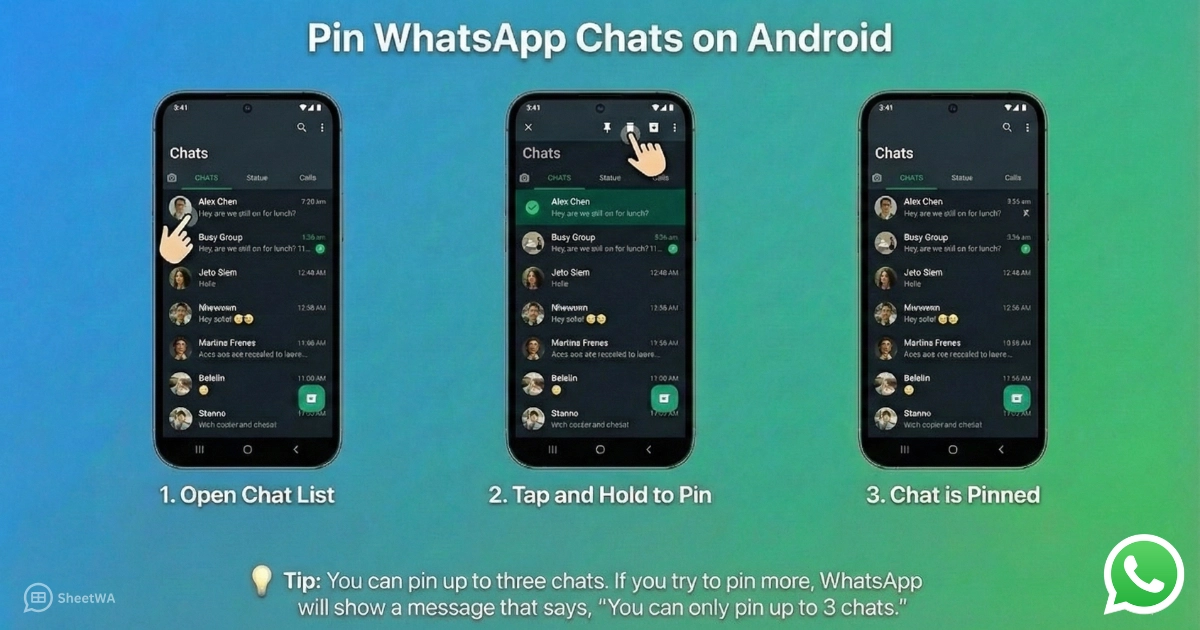
Do you want to keep your favorite conversations easy to find? You can pin WhatsApp chats on Android in just a few steps. When you pin chats, they always stay at the top of your chat list. This makes it simple to check important messages without scrolling.
How to Pin a Chat on WhatsApp
Open Chat List
First, open WhatsApp on your Android phone. You will see your chat list right away. This is where you can find all your conversations.
Tap and Hold to Pin
Now, let’s talk about how to pin a chat on WhatsApp. You can follow these steps:
Find the chat you want to pin in your chat list.
Tap and hold the chat until you see some icons appear at the top of the screen.
Tap the pin icon (it looks like a pushpin).
You will see the chat move to the very top of your list. A small pin icon will show next to it.
Tip: You can pin up to three chats. If you try to pin more, WhatsApp will show a message that says, “You can only pin up to 3 chats.”
Here’s a quick look at the pin limit:
Maximum Pinned Chats | Notification on Exceeding Limit |
|---|---|
3 | You can only pin up to 3 chats |
When you pin WhatsApp chats, they always stay at the top, even if you get new messages from other people. This helps you keep track of your most important conversations.
Unpin Chats on Android
Sometimes you may want to change which chats stay at the top. You can unpin a chat just as easily as you pinned it.
Find Pinned Chat
Look for the pinned chat in WhatsApp. You will see a small pin icon next to it. This shows you which chats are pinned.
Tap and Hold to Unpin
Here’s how to unpin a chat on WhatsApp:
Tap and hold the pinned chat in WhatsApp.
Tap the unpin icon (it looks like a pin with a line through it).
The chat will move back to its normal place in your chat list. You can now pin a different chat if you want.
Note: Pinned chats in WhatsApp help you stay organized. You can always change which chats are pinned. Just remember, you can only pin three chats at a time.
Pin WhatsApp chats to make your life easier. You will always know where your most important messages are. If you ever wonder how to pin chats or how to unpin a chat on WhatsApp, just follow these simple steps. Pin a chat on WhatsApp today and see how much time you save!
Pin WhatsApp Chats on iPhone
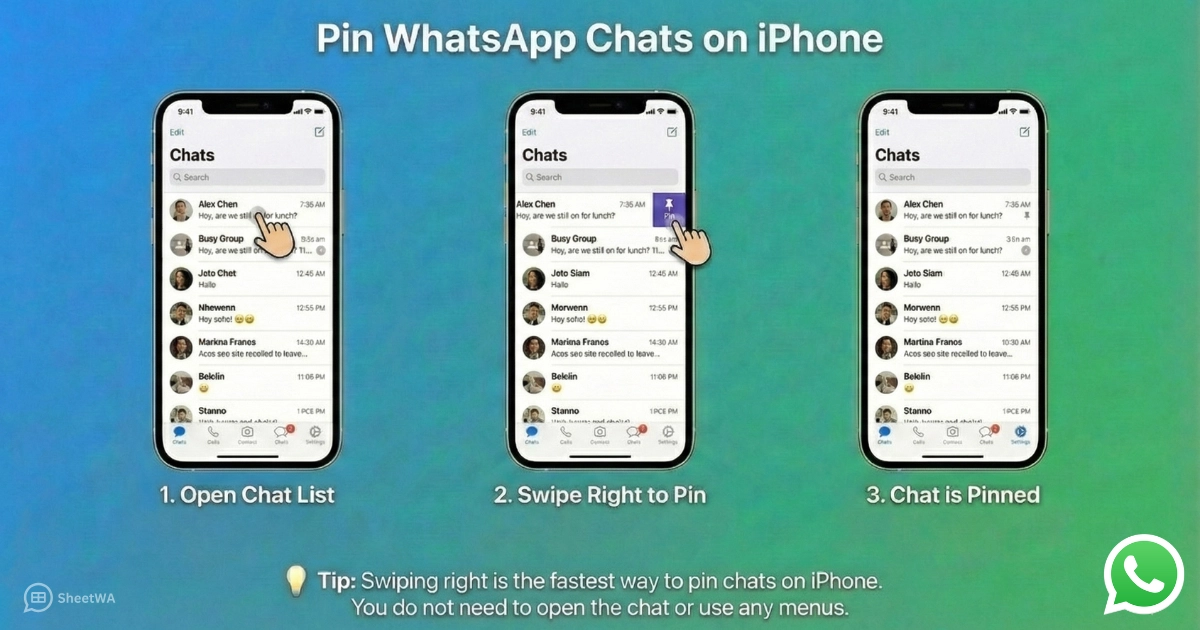
Do you use an iPhone and want to keep your most important conversations at the top? You can pin WhatsApp chats in just a few seconds. This feature helps you find your favorite chats quickly. You do not need to scroll through your whole chat list. Let’s walk through how to pin chats and how to unpin them.
How to Pin a Chat on WhatsApp
Open WhatsApp
Start by opening WhatsApp on your iPhone. You will see your chat list as soon as the app loads. This is where all your conversations appear.
Swipe Right and Pin
You can pin a chat on WhatsApp with a simple swipe. Here’s how you do it:
Find the chat you want to pin in your chat list.
Swipe right on the chat. You will see a pin icon appear.
Tap the pin icon. The chat moves to the top of your list. You will see a small pin next to it.
Tip: Swiping right is the fastest way to pin chats on iPhone. You do not need to open the chat or use any menus.
WhatsApp lets you pin up to five chats on your iPhone. This makes it easy to organize your conversations. If you try to pin more than five, WhatsApp does not show a clear message. You will notice that you cannot pin another chat until you unpin one.
Here’s a quick table to help you remember:
Maximum Pinned Chats | Notification When Limit Reached |
|---|---|
5 | No specific notification |
Pinned chats always stay at the top. Even if you get new messages, your pinned chats do not move down. You can use this feature to keep your family, work, or group chats easy to find.
Unpin Chats on iPhone
You may want to change which chats stay at the top. Unpinning is just as easy as pinning.
Locate Pinned Chat
Look for the pinned chat in WhatsApp. You will see a small pin icon next to it. This shows you which chats are pinned.
Swipe Right and Unpin
To unpin a chat, follow these steps:
Swipe right on the pinned chat in WhatsApp.
Tap the unpin icon. The chat moves back to its normal spot in your chat list.
Note: You can always change your pinned chats. If you reach the limit, unpin one to make space for another.
Pinned chats in WhatsApp help you stay organized. You can keep your most important conversations at the top. You do not need to search for them every time you open the app. If you ever wonder how to pin chats or how to unpin a chat on WhatsApp, just use the swipe gesture. It is quick and easy.
Pin WhatsApp chats on your iPhone to save time and keep your chat list neat. Try it today and see how much easier it is to find your favorite conversations.
Manage Pinned Chats

Rearranging Pinned Chats
You might want to change the order of your pinned chats. Maybe your work group needs to be at the very top, or you want your family chat to come first. On WhatsApp, you can rearrange pinned chats by unpinning and then pinning them again in the order you prefer. The most recently pinned chat always moves to the top of your list.
Here’s how you can do it:
Unpin the chat you want to move.
Pin chats in the order you want them to appear.
Check your chat list. The last chat you pin will show up at the top.
Tip: If you have three pinned chats and want to change their order, unpin all three and then pin them one by one. This way, you control which chat sits at the top.
You can use this trick to keep your most important conversations front and center. It helps you stay organized and makes sure you never miss a message from the people who matter most.
Pin Limit and Best Practices
WhatsApp sets a limit on how many chats you can pin. On Android, you can pin chats up to three. On iPhone, you can pin up to five chats. If you try to pin more than the limit, WhatsApp will not let you. You need to unpin a chat before you can add another one.

Here’s a quick table to help you remember:
Device | Maximum Pinned Chats |
|---|---|
Android | 3 |
iPhone | 5 |
To get the most out of pinned chats, follow these best practices:
Choose chats that you check often. This could be your family, close friends, or work groups.
Review your pinned chats every week. Unpin chats that are no longer important.
Use the pin chats feature to keep urgent conversations at the top. This saves you time and helps you respond faster.
Avoid pinning too many group chats. Pick the ones that matter most.
Note: Pinned chats stay at the top even if you get new messages in other chats. You always know where to find your top conversations.
Managing your pinned chats helps you keep your WhatsApp neat and easy to use. You spend less time searching and more time chatting. Try these tips and see how much smoother your messaging experience becomes.
Troubleshoot Pinned Chats
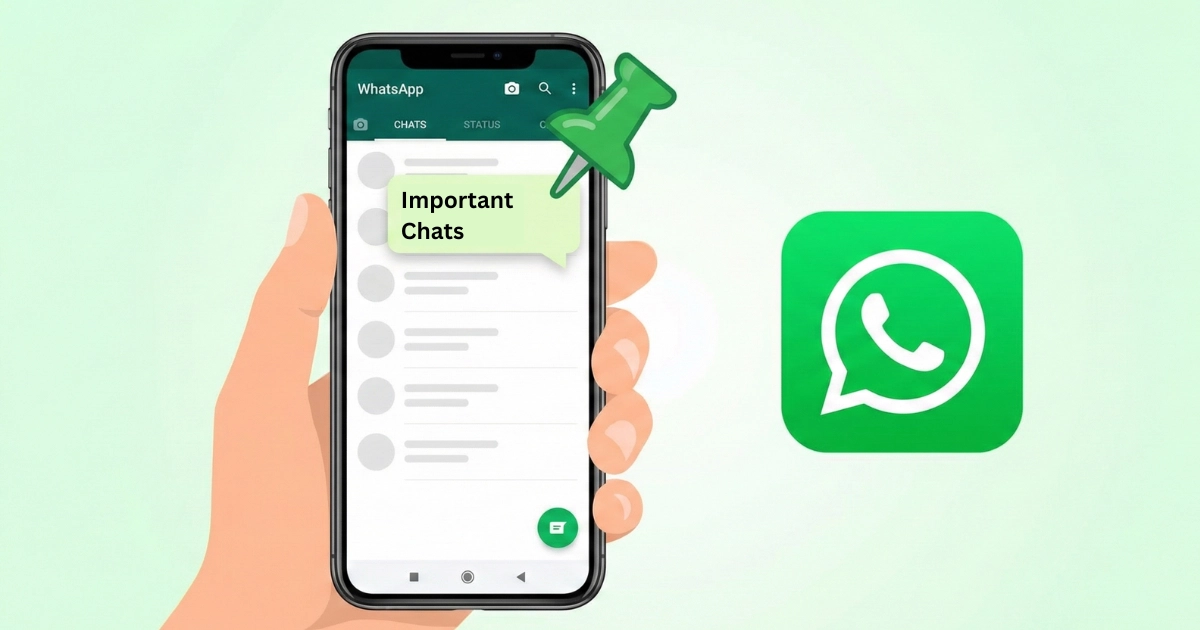
Sometimes, you might run into problems when you try to pin chats on WhatsApp. Don’t worry—most issues have simple fixes. Let’s look at some common problems and how you can solve them.
Pin Option Not Showing
You open WhatsApp and want to pin chats, but the pin icon is missing. This can feel confusing. Here are a few reasons why this happens and what you can do:
Outdated App Version: If you use an old version of WhatsApp, some features may not show up. Go to your app store and check for updates. Download the latest version to get all the newest features.
Reached Pin Limit: WhatsApp lets you pin only a certain number of chats. On Android, you can pin up to three chats. On iPhone, you can pin up to five. If you already hit the limit, you need to remove pin chat from one conversation before you can add another.
Temporary Glitch: Sometimes, your phone just needs a quick restart. Close WhatsApp, restart your device, and try again.
Tip: If you still can’t see the pin option, try logging out and back in or reinstalling WhatsApp. This often fixes small bugs.
You may also notice that some beta versions of WhatsApp have bugs that affect pin chats. For example, some users reported crashes when opening the app or using the favorites chat filter. These issues usually get fixed in later updates.
Here’s a quick look at some known problems:
Issue Description | Affected Version | Resolution |
|---|---|---|
Crashes when opening the app or during calls | WhatsApp beta for Android 2.24.12.7 | Bug-fix update in version 2.24.12.15 |
Favorites chat filter causing crashes | Beta testing phase | Update released to address issues |
Always keep your app updated to avoid these problems.
Pinned Chats Not Staying at Top
You pin chats, but they don’t stay at the top of your chat list. This can make it hard to find your important conversations. Here’s what you can do:
Check Pin Limit: If you try to pin more than the allowed number, WhatsApp may not keep all your pinned chats at the top. Make sure you have not gone over the limit.
App Glitch: Sometimes, a small bug can cause pinned chats to move down. Restart your phone or update WhatsApp to the latest version.
Sync Issues: If you use WhatsApp on more than one device, sometimes the pinned chats do not sync right away. Give it a few minutes or refresh your chat list.
If you still have trouble, unpin the chat and then pin it again. This often resets the order and puts your chat back at the top.
Pin chats help you keep your most important messages easy to find. If you ever need to remove pin chat from a conversation, just follow the steps for your device. With these tips, you can fix most problems and enjoy a smooth WhatsApp experience.
Why Use Pinned Chats
Benefits of Pinning
You probably have a few chats you check all the time. Maybe it’s your family group, your work team, or a community you care about. When you pin chats, you make sure these conversations never get lost in a busy chat list. You always see them first, right at the top.
Let’s look at how pinning helps you every day:
Benefit | Description |
|---|---|
Organisation and accessibility | Keep important information at the top for quick reference, saving time from scrolling. |
Enhanced communication and engagement | Highlight key points to ensure visibility and participation in conversations. |
Convenience and efficiency | Reduce clutter and minimize scrolling, making it easier to find and access information quickly. |
You can see how much easier it gets to stay organized. You don’t waste time searching for that one message. You don’t miss out on important updates. You can focus on what matters most.
People use pin chats for all sorts of conversations. Here are some of the most common ones:
Work-related groups
Family chats
Community groups
You might want to keep your project group at the top during a busy week. Or maybe you want your family chat easy to find when you’re planning a trip. Pinning makes it simple.
Tip: You can always change which chats you pin. Just unpin one and pick another when your priorities change.
Quick Access to Important Chats
Have you ever needed to find a message fast? With pinned chats, you don’t have to scroll through a long list. You tap WhatsApp, and your top chats are right there. This saves you time and helps you respond quickly.
Many users say they love this feature. They find it helpful to pin chats because it lets them manage important information without stress. You can highlight key messages and always know where to look.
Here’s what people like about pinning:
You can pin chats to highlight and easily locate important messages.
You get to prioritize what matters, so you never miss a crucial update.
You feel more in control of your conversations.
“I use pin chats to keep my work group at the top. I never miss a deadline now!” – WhatsApp user
Pinning chats isn’t just about staying organized. It’s about making your life easier. You get quick access to the people and groups you care about. You spend less time searching and more time connecting.
Try pinning your most important chats today. You’ll see how much smoother your WhatsApp experience becomes.
Pin whatsapp chats makes your life easier. You just open WhatsApp, pick your chat, and use a simple tap or swipe—whether you use Android, iPhone, or Web. You can always unpin a chat with the same quick steps. This feature keeps your important conversations at the top, helps you stay organized, and protects your privacy with end-to-end encryption. Try it out and see how much faster you find your favorite chats!
You control your chat list. Stay connected and never miss what matters most.

FAQ
How many chats can you pin on WhatsApp?
You can pin up to three chats on Android and five chats on iPhone. If you reach the limit, you need to unpin a chat before you can pin another.
Can you pin group chats on WhatsApp?
Yes, you can pin group chats just like individual chats. Find your group, tap or swipe, and pin it to the top for quick access.
Does pinning a chat notify the other person?
No, WhatsApp does not send any notification when you pin or unpin a chat. Only you see which chats you have pinned.
Will pinned chats sync across devices?
Pinned chats usually stay at the top on each device. If you use WhatsApp Web or another phone, you may need to refresh or wait for the sync.
Can you pin chats on WhatsApp Web?
You cannot pin chats directly on WhatsApp Web. You need to use your phone to pin chats, and then they appear at the top on Web.
What happens if you get a new message in a pinned chat?
Your pinned chat stays at the top. New messages appear inside the chat, but the chat does not move down the list.
How do you unpin a chat?
On Android, tap and hold the pinned chat, then tap the unpin icon. On iPhone, swipe right on the pinned chat and tap unpin.
Why can't you see the pin option?
You may use an old WhatsApp version, or you have reached the pin limit. Update your app or unpin a chat to fix this.
