
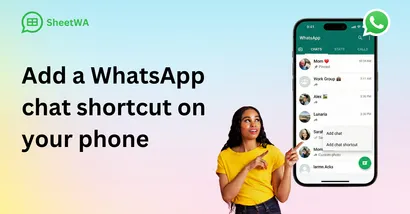
Want to open your favorite WhatsApp conversation in just one tap? You can add a chat shortcut on WhatsApp right to your home screen. If you use Android, you get a built-in shortcut option. iPhone users need a few extra steps with the Shortcuts app. You save time and skip searching for chats. Try following the steps for your device and enjoy faster messaging!
Key Takeaways
WhatsApp chat shortcuts help you open favorite chats fast from your home screen.
Android users can add shortcuts by using the menu or by holding down on a chat. iPhone users must use the Shortcuts app to make them.
Shortcuts save time because you do not have to scroll or search for chats.
You can make your home screen look how you want by moving your most-used chat shortcuts around.
Click to Chat links let you start chats without saving numbers, which is good for business contacts.
It is simple to manage shortcuts; you can change their names, move them, or delete them to keep your home screen neat.
If shortcuts do not work, make sure your app is updated and check your phone’s settings. Shortcuts make messaging faster and help you stay organized.
Chat Shortcut on WhatsApp: Quick Overview
What is a WhatsApp Chat Shortcut
Have you ever wished you could jump right into your favorite WhatsApp conversation without scrolling through your chat list? That’s where a chat shortcut on WhatsApp comes in handy. A chat shortcut is a quick link that sits on your phone’s home screen. When you tap it, you go straight to a specific chat or group in WhatsApp. You don’t need to open the app and search for the person or group you want to message.
You can think of a WhatsApp chat shortcut like a speed dial for texting. Instead of dialing a number, you just tap an icon. It’s a small button with your friend’s or group’s name and profile picture. You can add shortcuts for your best friend, family group, or even your work team. Each shortcut works like a direct door to that conversation.
Tip: You can create more than one shortcut. This means you can have quick access to all your most important chats right from your home screen.
Benefits of Chat Shortcuts
Adding chat shortcuts to your phone makes life easier. Here are some reasons why you might want to use them:
Save Time: You don’t have to scroll through your chat list or search for names. One tap takes you right where you want to go.
Stay Organized: You can keep your most-used chats on your home screen. This helps you avoid missing important messages.
Easy for Everyone: You don’t need to be a tech expert. Setting up a shortcut is simple and quick.
Personalize Your Phone: You can arrange your shortcuts in any order. Put your favorite people or groups front and center.
Great for Busy Days: If you message the same people often, shortcuts help you reply faster.
Here’s a quick table to show how chat shortcuts can help you:
Situation | How a Shortcut Helps |
|---|---|
Messaging family daily | Tap once to open family chat |
Work group updates | No searching, just tap |
Checking on friends | Quick access, less hassle |
You can see that using a whatsapp chat shortcut can make your daily messaging routine smoother. You spend less time searching and more time chatting. If you like things simple and fast, shortcuts are a smart choice.
Note: Not all phones have the same steps for adding shortcuts. Android makes it easy, while iPhone needs a few extra steps. Don’t worry, this guide will walk you through both!
Add WhatsApp Chat Shortcut on Android

Using Menu Option
Open Chat and Access Menu
You want to jump into your favorite conversation fast, right? The menu option makes it simple to set up a chat shortcut on WhatsApp. First, open WhatsApp on your Android phone. Find the chat or group you want quick access to. Tap to open that chat. Now, look for the three dots in the top right corner. That’s your menu button. Tap it to see more options.
Select 'Add Chat Shortcut'
After you tap the menu, a list will pop up. Scroll until you see the option that says "Add chat shortcut." Tap this. Your phone will instantly place a shortcut for that chat right on your home screen. You can move this shortcut around, just like any other app icon. Now, whenever you want to talk to that person or group, you only need one tap.
Tip: If you don’t see the shortcut on your home screen, check your launcher settings. Make sure "Add apps to Home screen" is turned on. Some phones need this setting enabled before new shortcuts appear.
Using Long-Press Method
Press and Hold Chat
There’s another quick way to add whatsapp chat shortcut. Go back to your WhatsApp chat list. Find the chat you want. Press and hold your finger on that chat. A menu will pop up with different choices.
Add Shortcut from Menu
From the menu, pick "Add conversation shortcut." Your phone will create a chat shortcut on whatsapp and place it on your home screen. You can drag it to any spot you like. This shortcut works just like a speed dial for texting. You tap it, and you’re right inside your favorite chat.
WhatsApp Chat Shortcut on iPhone
You might notice that iPhone does not let you add a chat shortcut on whatsapp directly to your home screen like Android does. Apple keeps things locked down, so you need to use some clever workarounds. Don’t worry, you can still get quick access to your favorite chats. Let’s look at the best ways to make your messaging faster and easier.
Note: You can use several tricks to make WhatsApp chats easier to reach. These methods help you save time and keep your most important conversations close.
Using Shortcuts App
The Shortcuts app on your iPhone gives you a way to create custom actions. You can set up a shortcut that opens a WhatsApp chat with just a tap. This method takes a few steps, but you only need to do it once.
Create WhatsApp Message Action
Follow these steps to set up a whatsapp chat shortcut using the Shortcuts app:
Make sure you have the latest version of WhatsApp. Update your app to version 2.20.80.23 or newer.
If you use Face ID for WhatsApp, turn it off. Go to WhatsApp Settings, tap Account, then Privacy, then Screen Lock. Switch off Face ID.
Open WhatsApp and send a message to the contact you want to create a shortcut for. Each time you send a message, a shortcut appears in your share sheet.
Now you have a shortcut ready to use. You can open the Shortcuts app and find your new WhatsApp action.
Add to Home Screen
You want your shortcut right on your home screen for easy access. Here’s how you do it:
Open the Shortcuts app.
Tap the three dots on your WhatsApp shortcut.
Tap the share icon.
Choose “Add to Home Screen.”
Name your shortcut and pick an icon if you want.
Your shortcut now sits on your home screen. Tap it, and you jump straight into your chosen WhatsApp chat. This makes messaging much faster.
Siri Shortcuts
Siri Shortcuts let you use your voice to open WhatsApp chats. You can set up a command that tells Siri to start a chat with someone. This is great when your hands are busy or you want to go hands-free.
Set Up Siri Command
Here’s how you set up a Siri command for a whatsapp chat shortcut:
Go to your iPhone Settings and tap Siri & Search.
Turn on “Press Side Button for Siri” or “Press Home for Siri,” depending on your device.
Scroll down and tap WhatsApp.
Turn on “Use with Ask Siri.”
Now you can say, “Hey Siri, message [contact name] on WhatsApp,” and Siri will open the chat for you. This shortcut saves you time and keeps your chats just a voice command away.
Tip: Siri Shortcuts work best when you use clear contact names. If you have two friends with the same name, add a last name or nickname.
You should know about one limitation. Siri Shortcuts sometimes respond slower than the usual “Hey Siri” command. You might notice a delay before Siri opens your chat. This can feel a bit annoying if you want instant access.
Other iPhone Workarounds
You can try a few more tricks to make WhatsApp easier to reach:
Move WhatsApp to your dock at the bottom of your screen. This keeps it always visible.
Turn off iMessage to avoid mixing up messages.
Mute SMS notifications from the default Messages app. This helps you focus on WhatsApp.
Here’s a quick table to show you the pros and cons of each method:
Method | Pros | Cons |
|---|---|---|
Shortcuts App | Custom icons, fast access | Needs setup, not direct |
Siri Shortcuts | Hands-free, voice control | Possible delay, voice only |
Dock Placement | Always visible | No direct chat shortcut |
Turn Off iMessage | Less confusion | May miss SMS messages |
You see, iPhone users have to get creative to add a chat shortcut on whatsapp. With these workarounds, you can keep your favorite chats close and make your home screen work for you.
Create a Shortcut for Chats: Management Tips
You probably want your phone to feel organized and easy to use. When you create a shortcut for chats, you get quick access, but you might also want to manage those shortcuts. Here’s how you can keep your home screen neat and make your messaging even faster.

Rename Chat Shortcut
Sometimes, the default name for a shortcut doesn’t help you remember who you’re chatting with. Maybe you want to add a nickname or a special label. On Android, you can’t rename a whatsapp chat shortcut directly from WhatsApp. The shortcut usually takes the contact’s name or group name as it appears in your chat list.
But you can try this trick:
Change the contact’s name in your phone’s address book.
Update the group name in WhatsApp if you’re an admin.
Delete the old shortcut and add a new one after you change the name.
If you use the Shortcuts app on iPhone, you can pick any name you like when you add the shortcut to your home screen. Just type the name you want before you finish.
Move or Rearrange Shortcut
You don’t have to keep your shortcuts in the same spot forever. You can move them around to fit your style. On both Android and iPhone, just tap and hold the shortcut. Your screen will let you drag the icon anywhere you want. Put your most-used chats at the bottom for easy thumb access, or group all your work chats together.
Here’s a quick table to help you decide where to place your shortcuts:
Placement Idea | Benefit |
|---|---|
Bottom row | Fastest to reach with thumb |
Next to WhatsApp | Keeps messaging tools together |
In a folder | Organizes many shortcuts |
Try different layouts until you find what works best for you.
Remove Chat Shortcut
Maybe you don’t need a shortcut anymore. Removing it is simple and takes just a few seconds. You won’t delete the chat itself—just the shortcut from your home screen.
To remove a chat shortcut, follow these steps:
Tap and hold on the chat shortcut icon.
Drag it to the 'remove' or 'bin' option.
Your chat stays safe in WhatsApp. You can always add the shortcut again if you change your mind.
Tip: Cleaning up old shortcuts keeps your home screen tidy and helps you focus on the chats that matter most.
Managing your shortcuts gives you control over your messaging experience. You can rename, move, or remove them anytime. With these tips, your phone stays organized, and you get the most out of every whatsapp chat shortcut.
Troubleshooting WhatsApp Chat Shortcut Issues
Running into problems with WhatsApp chat shortcuts? You’re not alone. Sometimes, things don’t work as expected. Maybe you can’t find the shortcut option, or your shortcut just won’t open the chat. Let’s look at some common issues and how you can fix them.
Shortcut Option Not Visible
You open WhatsApp and try to add a chat shortcut, but the option isn’t there. That can feel frustrating. Don’t worry—this happens to a lot of people. Here are some things you can check:
Make sure you have the latest version of WhatsApp. Updates often fix bugs and add new features.
Restart your phone. Sometimes, a quick reboot helps the app show all options.
Check your phone’s launcher settings. Some launchers hide new shortcuts or need you to turn on “Add apps to Home screen.”
If you use WhatsApp on your computer, update the desktop app too. Updates can fix shortcut bugs.
Look for other apps that use the same shortcuts. If you find a conflict, try changing the shortcut in one of the apps.
Tip: If you still can’t see the shortcut option, uninstall WhatsApp and reinstall it. This often resets the app and brings back missing features.
Shortcut Not Working
You tap your shortcut, but nothing happens. Or maybe it opens the wrong chat. This can happen for a few reasons. Here’s what you can do:
Delete the shortcut and add it again. Sometimes, shortcuts break if you move or rename chats.
Check if WhatsApp needs an update. Outdated apps can cause shortcuts to stop working.
Make sure you haven’t moved WhatsApp to an SD card. Shortcuts may not work if the app isn’t on your phone’s main storage.
Try restarting your phone. This can refresh your home screen and fix shortcut problems.
If you use a custom launcher, switch back to your phone’s default launcher and test the shortcut.
Note: If your shortcut still doesn’t work, check if your phone’s security settings block new shortcuts. Some security apps can interfere with home screen icons.
Device Compatibility
Not every phone supports WhatsApp chat shortcuts. Your device and operating system must meet certain requirements. Here’s a quick table to help you check if your phone is compatible:
Device Type | Minimum OS Version |
|---|---|
Android | 5.0 Lollipop or newer |
If you use an older Android version, you might not see the shortcut feature. iPhones don’t support direct chat shortcuts, but you can use the Shortcuts app as a workaround.
😊 Good to know: Keeping your phone’s software up to date helps you get the latest WhatsApp features, including chat shortcuts.
If you follow these tips, you can solve most shortcut problems. You’ll get back to fast messaging in no time!
You can make WhatsApp chat shortcuts on Android in just a few steps. On iPhone, you use the Shortcuts app or ask Siri. These shortcuts help you save time and do less work. You answer messages faster and keep people happy. Try pinning chats that matter most or use chat lock for privacy. Look at features like AI search and undo delete for me. The best shortcut helps your day go smoother and makes your business work better.

FAQ
How many WhatsApp chat shortcuts can you add on Android?
You can add as many chat shortcuts as you want. Your home screen space is the only limit. If you run out of room, try making a folder for your shortcuts.
Do WhatsApp chat shortcuts update if I change a contact’s name?
No, the shortcut keeps the old name and picture. You need to delete the shortcut and add a new one after you change the contact’s name.
Will deleting a chat shortcut remove the chat from WhatsApp?
No, deleting a shortcut only removes the icon from your home screen. Your chat stays safe in WhatsApp. You can always add the shortcut again later.
Can you add a group chat shortcut?
Yes! You can add shortcuts for both individual and group chats. Just follow the same steps you use for a regular chat.
Why can’t I find the “Add chat shortcut” option on my phone?
Make sure you have the latest WhatsApp version. Some phones or launchers may hide this feature. Try restarting your phone or checking your launcher settings.
Do WhatsApp chat shortcuts work if I move WhatsApp to an SD card?
No, shortcuts may not work if WhatsApp is on an SD card. Move the app back to your phone’s main storage for best results.
Can I use WhatsApp chat shortcuts on my iPad?
No, WhatsApp chat shortcuts do not work on iPad. You can use the Shortcuts app on your iPhone, but iPad does not support this feature.
Is it safe to use Click to Chat links as shortcuts?
Yes, it is safe if you create the links yourself. Only tap links from people you trust. For extra safety, turn on two-step verification in WhatsApp.
