
Ready to send your first WhatsApp campaign? You can do it easily with SheetWA. You don’t need any technical skills or complicated setup. Just follow this checklist for launching your WhatsApp campaign. You’ll avoid missing steps and make sure your messages reach the right people. SheetWA helps you send personalized and compliant messages in minutes.

Key Takeaways
Log in to WhatsApp Web by scanning the QR code with your phone. Make sure you are using the right account.
Install the SheetWA extension from the Chrome Web Store. This will help make your campaign setup easier.
Get your contact list ready using Google Sheets, Excel, or CSV files. Make sure phone numbers have the right country codes.
Send messages in small groups with a 3 to 5 second gap. This helps avoid account problems and makes delivery better.
Use variables like names and order numbers to make your messages personal. This helps people feel special.
Always check your messages before sending them. This helps you find mistakes and makes sure your message is clear.
Watch your campaign’s progress as it happens. Be ready to stop or cancel if you need to.
Get permission before messaging users and give them an easy way to opt out. Always respect user consent.
Checklist for Launching Your WhatsApp Campaign

Ready to get started? This checklist for launching your WhatsApp campaign will guide you through each step. You’ll find it simple and quick, even if you’re new to WhatsApp marketing.
1. Prepare WhatsApp Web
Login Process
First, open WhatsApp Web in your browser. You’ll see a QR code on the screen. Grab your phone, open WhatsApp, and scan the QR code. Your chats will pop up on your computer. You’ll know you’re logged in when you see your profile picture in the corner. This step connects your phone to your computer, so you can send messages right from your browser.

Tip: Always double-check that you’re logged into the correct WhatsApp account before starting your campaign.
Compatibility Notes
WhatsApp Web works best on browsers like Chrome and Edge. Most users have a smooth experience, but some report issues with certain browsers. If you notice problems, try switching to Chrome or updating your browser. Keeping your browser up to date helps avoid glitches and makes your campaign run smoothly.
Over half of users say they’ve had trouble with WhatsApp Web at least once.
Problems often happen when using older browsers or unsupported devices.
2. Install SheetWA Extension
Chrome Web Store Steps
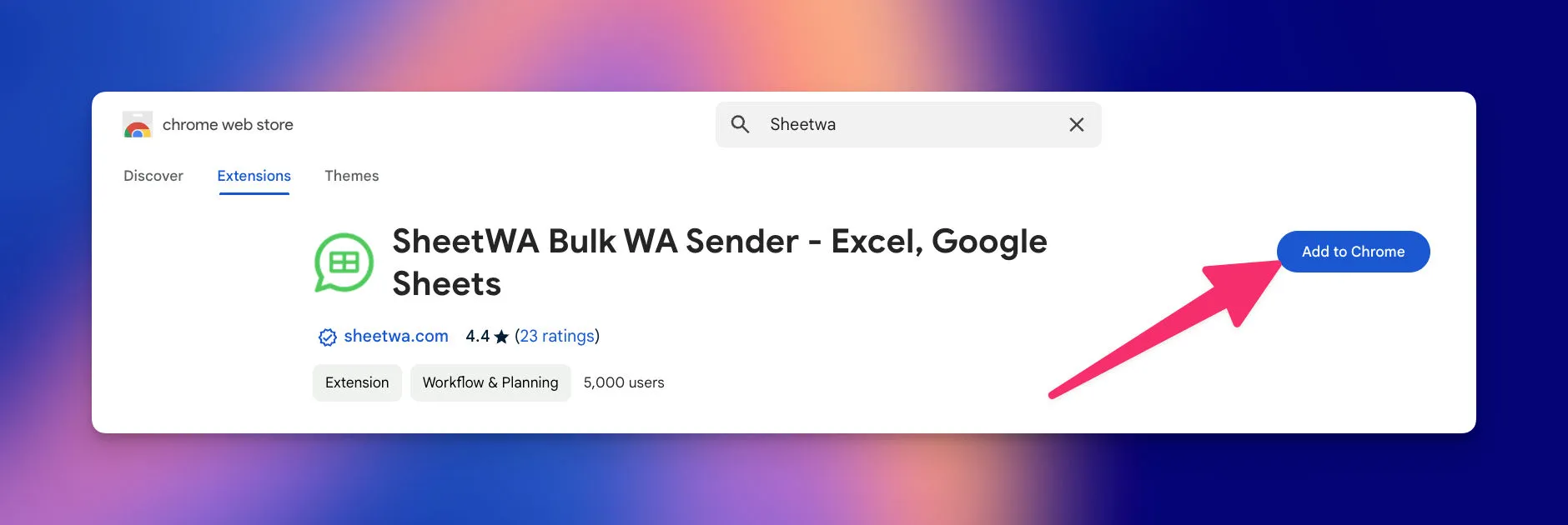
Now, let’s install SheetWA. Go to the Chrome Web Store and search for SheetWA. Find the official extension and hit “Add to Chrome.” A pop-up will ask you to confirm. Click “Add Extension.” Chrome will download and install SheetWA for you.
Note: You don’t need any technical skills or special setup. SheetWA works right inside your browser.
Post-Installation Actions
After installation, SheetWA opens automatically. You’ll see a new WhatsApp Web session and the SheetWA setup screen. Sign in with your Google account to connect your data. Once you’re signed in, you’re ready to start building your campaign.
Following each item in this checklist for launching your WhatsApp campaign helps you avoid common mistakes. Many people forget to segment their audience or send too many messages at once. Others skip getting consent, which can lead to problems. If you stick to the checklist, you’ll keep your campaign organized and your messages relevant.
Don’t overload your contacts with messages.
Always get permission before adding someone to your list.
Segment your audience so each message feels personal.
This checklist for launching your WhatsApp campaign makes sure you set up everything the right way. You’ll save time, avoid errors, and reach your audience with messages that matter.
Whatsapp Contact List Data Preparation and Import
Getting your contact list ready is a big step in the checklist for launching your WhatsApp campaign. When you prepare your data well, you make sure your messages reach the right people and look professional.
3. Format Contact List
Google Sheets, Excel, CSV Options
You can use Google Sheets, Excel, or CSV files to organize your contacts. Each option works with SheetWA, so you can pick the one you like best. If you already have a list in Excel, you can upload it directly. Google Sheets is great if you want to update your list from anywhere. CSV files are simple and work well for big lists.

Tip: Make sure your file has clear columns for names, phone numbers, and any other details you want to use in your messages.
Country Code Settings
Phone numbers need to be in the right format. If your contacts are all from one country, you can add the country code. For international lists, include the country code with each number or use a separate column for country codes. This helps SheetWA send messages without errors.
4. Import Data into SheetWA
Select Data Source
After you format your list, open SheetWA and choose how you want to import your data. You can paste numbers, upload your Excel or CSV file, or connect a Google Sheet. Pick the method that matches your file.
Map Fields
SheetWA will ask you to match each column in your file to the right field. For example, you match the "Name" column to the name field and the "Phone Number" column to the phone field. This step makes sure your messages use the right details for each person.

5. Batch Sending Setup
Select Rows
You don’t have to send messages to everyone at once. You can pick a range of rows, like rows 2 to 50, to send messages in smaller groups. This keeps your campaign organized and helps you avoid sending too many messages at once.
Sending messages in batches helps your campaign reach more people. Many businesses use batch sending to connect with large audiences and track how well their messages do. When you send messages in smaller groups, you can see which ones get delivered and make changes if needed. Bulk messaging services often see high open rates, so your messages are likely to be seen.
Time Gap Settings
It’s smart to set a small time gap between each message. A gap of 3 to 5 seconds works well. This makes your messages look more natural and helps avoid any account restrictions. Try not to send more than 50 to 100 messages per hour. This keeps your account safe and your campaign running smoothly.

Setting the right time gap and sending in batches can boost your delivery rates and help your messages reach your audience without problems.
Personalize and Create WhatsApp Messages
Making your messages personal helps your WhatsApp campaign stand out. SheetWA lets you write messages that feel special for each person. This part of the checklist helps you make messages people notice and act on.
6. Message Templates
Message templates help you save time and stay organized. You can make a template for a welcome, reminder, or offer. Templates let you use your best messages again and change them when you need.
Read More : 75 Top WhatsApp Message Templates for Business Success
Create, Update, Delete Templates
Write your message and save it with a name you know.
To change a template, pick it, edit, and save your changes.
Delete templates you do not use anymore.
Tip: Good templates are short and clear. Add a call-to-action like “Shop Now” or “Get Discount” to get replies.
Here’s what works well in templates:
Greetings that use names
Clear calls-to-action
Pictures or videos
Messages for different groups
7. Personalization Variables
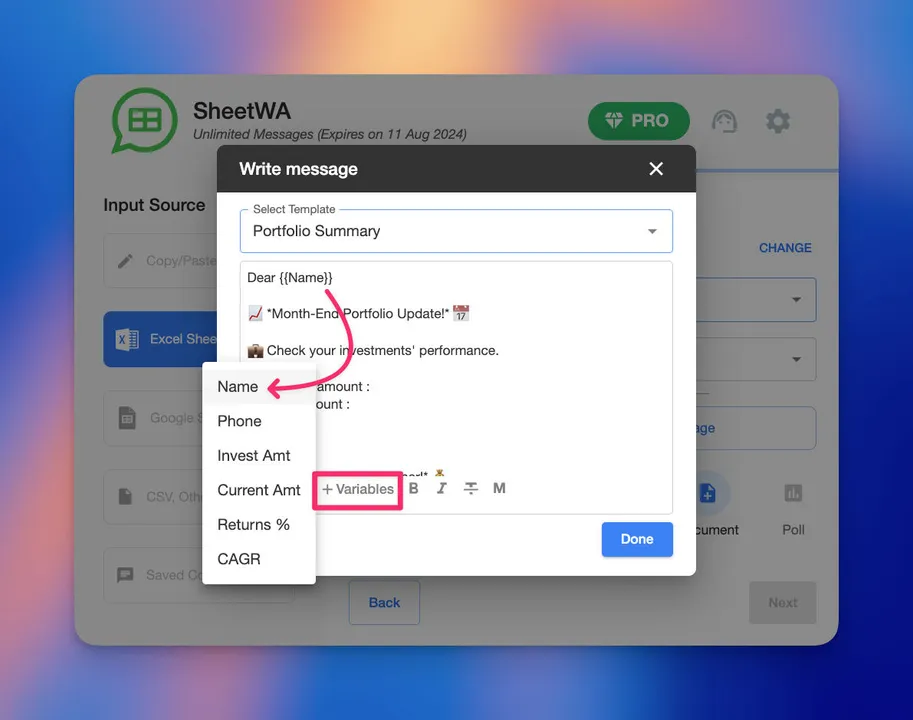
Personalization variables make each message feel special. You can use details like names or order numbers from your contact list. This gives each person a custom message.
Hyper-Personalized Fields
SheetWA lets you add things like names, order numbers, or times. This makes your messages matter more and gets more replies.
Variable Example | Description |
|---|---|
@customer_name | Personal greeting |
@order_number | Order reference |
@delivery_date | Expected delivery |
@appointment_time | Scheduled time |
Best practice: Use easy-to-read variable names. Test your templates with sample data before you send. Do not use too many variables in one message.
8. Add Media Attachments
Media attachments make your messages more fun. You can send photos, videos, PDFs, to get attention and share info.
Rich media messaging helps you connect with people. You can send ads, product pictures, or event flyers. Adding media makes your messages feel personal and easy to act on.
Note: Using images, videos, and emojis can help more people click your messages and remember what you say.
Preview and Review WhatsApp Messages
You’ve set up your contact list and crafted your message. Now, it’s time to make sure everything looks perfect before you hit send. The preview and review step is your safety net. It helps you catch mistakes, check personalization, and see exactly what your audience will receive. Let’s walk through how you can use SheetWA’s preview feature to make your campaign shine.

9. Message Preview Feature
When you use SheetWA, you get a real-time preview of your WhatsApp message. This feature shows you the exact message, with all the names and details filled in. You don’t have to guess how your message will look. You see it just like your contacts will.
Tip: Always preview your message before sending. This step can save you from embarrassing mistakes and make your campaign look professional.
Here’s how the preview feature helps you avoid errors and send better messages:
Key Point | Explanation |
|---|---|
Previewing Before Sending | You see how the message will look to your recipients. This ensures clarity and correct formatting. |
Personalization Check | You can verify how names and other details appear. This makes sure each message feels personal. |
Avoiding Mistakes | You catch errors or unwanted content before your message goes out. |
Content Accuracy
Checking your message for accuracy is a must. Even small mistakes can make your campaign look unprofessional. When you preview, look for these common issues:
Grammar and spelling errors
Variable placeholder errors
Broken or missing links
Message length or formatting problems
Low-quality images or media
Unclear calls-to-action
Take a moment to read your message out loud. Does it sound right? Are all the details correct? If you spot a problem, fix it before you send. This step helps you build trust with your audience.
Formatting and Attachments
Formatting matters. A well-formatted message is easy to read and looks great on any device. In the preview, check that bold or italic text stands out where you want it. Emojis should appear in the right spots. If you’ve added images, videos, or documents, make sure they show up clearly.
Read More : WhatsApp Formatting Tips to Enhance Your Messages
Note: High-quality images and clear formatting help your message stand out. If something looks off in the preview, adjust it now.
A quick review of your attachments can make a big difference. Make sure files open correctly and look good on both desktop and mobile. When you take the time to preview and review, you send messages that get noticed and remembered.
Send and Monitor WhatsApp Campaign

You are almost ready to start your WhatsApp campaign. Now, let’s talk about sending your messages and checking what happens after. This part helps you make sure your campaign works well and you know how it is doing.
10. Start Bulk Messaging
After you check your messages, you can send them in bulk. SheetWA makes this step simple. You just click “Send” to begin your campaign. You will see each message go out, one at a time, in your browser.
Monitor Progress
It is important to watch your campaign as it sends. You want to see if everything is working right. SheetWA shows you the status of every message in real time. You can see which messages are sent, which are waiting, and if any have problems.

Tip: Watch the progress bar. If many messages do not send, pause and check your data.
SheetWA gives you a simple dashboard, so you do not need extra software. You get instant updates on how your campaign is going.
11. Delivery Report
When your campaign is done, you get a delivery report. This report shows which messages were sent and which were not. It helps you check if your campaign worked.
Sent and Not Sent Status
The delivery report shows your results. You see a list of sent messages and a list of messages that did not go through. Each line shows the phone number, message, and status.
Common reasons for messages not being delivered include:
Outdated WhatsApp version on the recipient’s phone
Invalid or deactivated phone numbers
Recipient blocked your number
User hasn’t opted in
Personalization errors
Message length or rate limits
Sending restricted content
Note: If you see many “Not Sent” statuses, check your contact list and message settings.
Common Issues
Delivery reports help you find and fix problems fast. Here is how you can use them:
Keep your message templates clear for better delivery
Follow the 24-hour messaging rule
Make sure your business verification is current
Reset your network settings if you see problems often
Check your office network to allow WhatsApp traffic
When you use delivery reports, you make your next campaigns better. You learn what works and what needs to change. This keeps your WhatsApp marketing strong and steady.
Responsible Use and Compliance
Starting a WhatsApp campaign is more than sending messages. You must respect your audience and follow rules. This part shows how to use SheetWA the right way and keep your campaign legal.
User Consent Management
Get clear permission before you send any message. This is important and required by law in many places. Your audience needs to trust you, so always ask for consent first.
Here’s what you need to do:
Requirement | Description |
|---|---|
Explicit Opt-In Consent | Users must say yes before getting marketing messages. |
Compliance with Local Laws | Follow the IT Act and TRAI rules for legal marketing. |
Adherence to WhatsApp Policies | Your marketing must match WhatsApp’s rules to avoid problems. |
Prohibition of Unsolicited Messages | Do not send messages to people who did not opt in. This breaks WhatsApp’s and Indian laws. |
Opt-Out Instructions
Always let people stop getting your messages easily. Add a simple opt-out line at the end, like “Reply STOP to unsubscribe.” This shows respect and keeps you legal.

Put a clear opt-out in every message.
Make opting out quick and easy.
Remove anyone who opts out from your list fast.
Respect choices to build trust and follow WhatsApp’s rules.
Tip: If someone wants to stop messages, take them off your list right away. This keeps your campaign safe and your audience happy.
Time Gap and Batch Sending
Sending too many messages at once looks like spam. SheetWA lets you set a time gap and send messages in batches. This keeps your campaign natural and follows WhatsApp’s rules. Keep batch sizes small and add a few seconds between messages.
Manual Engagement Tracking
You want to know if your campaign works. Track replies and engagement to see what your audience likes. Watching how many people open and reply helps you improve your next campaign.
Tracking numbers helps you learn about your audience.
Use data to make your messages better.
Targeted plans bring more replies and better results.
Encourage Replies
Ask questions or invite feedback in your messages. When people reply, you know they care. This two-way chat builds stronger relationships and helps you learn what your audience wants. Try ending your message with a question or a call to action, like “Let us know if you have questions!” or “Reply YES to get your offer.”
Remember, responsible messaging is not just about rules. It is about building trust and making your audience feel important.
Optimize Future WhatsApp Campaigns
You want your WhatsApp campaigns to get better each time. After you send messages, don’t just forget about them. Take a few minutes to look at what happened. This helps you learn and do better next time.
Analyze Delivery Reports
Delivery reports show how your messages did. You can see which messages reached people and which ones did not. You also find out how many people opened your messages or clicked your links. These numbers help you know what works.
Data Corrections
If your delivery rate is low, check your contact list for mistakes. Some phone numbers might be wrong or missing country codes. Fix these problems before your next campaign. If lots of messages bounce, update your list and remove numbers that do not work. This keeps your next campaigns strong.
Tip: Always check your data before sending. Clean data gives better results.
Refine Message Templates
Your message templates help you do well. If people do not open your messages or click your links, try changing your template. Make your message shorter or add a clear call-to-action. Use friendly words and make sure your message fits your audience.
Personalization Improvements
Personalization makes your messages special. Use names, order numbers, or special dates in your messages. If people do not reply much, add more personal details. People like messages made just for them.
Use variables like @customer_name or @appointment_time
Test new templates with small groups first
Ask your contacts for feedback
Note: Personalized messages get more replies and help you build stronger relationships.
Maintain Contact List
Your contact list is very important for your campaign. Keep it up to date and correct. Remove people who opt out and add new contacts who say yes. Update names and phone numbers often.
Consent and Opt-Out Updates
Always respect what your contacts want. If someone asks to stop getting messages, remove them quickly. Keep a list of who said yes and who said no. This helps you follow the rules and builds trust.
Check your list after every campaign
Make opt-out steps clear in every message
Only message people who want your messages
Keeping your contact list clean helps you avoid problems and keeps your audience happy.
Starting a WhatsApp campaign with SheetWA is simple. The checklist for launching your WhatsApp campaign helps you avoid mistakes. You can reach people with messages that matter. When you make your messages personal, people pay more attention. Sending messages the right way is important. Checking your results helps your business grow. SheetWA saves you time and makes your campaigns better. If you are new, keep this checklist close. Use it every time you plan a new campaign.

FAQ
How do I start my first WhatsApp campaign with SheetWA?
You just log in to WhatsApp Web, install the SheetWA extension, and connect your contact list. Follow the checklist steps. You’ll be ready to send messages in minutes.
Can I use Excel, Google Sheets, or CSV files for my contacts?
Yes! You can upload Excel files, link Google Sheets, or import CSV files. SheetWA works with all three. Pick the format that fits your workflow.
What types of media can I send with SheetWA?
You can send images, videos, PDFs, and emojis. Supported formats include JPEG, PNG, MP4, and PDF. Add media to make your messages more engaging.
How do I personalize each message?
Use variables like names or order numbers from your contact list. SheetWA lets you map these fields so every message feels personal. Try adding a greeting with the person’s name.
Is there a way to preview my messages before sending?
Absolutely! SheetWA shows you a real-time preview. You see exactly what your contacts will get. Check for errors and make sure everything looks good before you hit send.
What should I do if someone wants to stop receiving messages?
Respect their choice. Add a simple opt-out line, like “Reply STOP to unsubscribe.” Remove anyone who opts out from your contact list right away.
How can I keep my WhatsApp account safe while sending bulk messages?
Set a time gap between messages and send in small batches. This helps your messages look natural and keeps your account safe.
Do I need any technical skills to use SheetWA?
Nope! You don’t need coding or special setup. SheetWA is easy for beginners. Just follow the steps and you’ll launch your campaign without hassle.
