

You want to mark chat as unread on WhatsApp, right? If you use Android, tap and hold the chat, then choose "Mark as unread" from the menu. On iOS, swipe right on the conversation and tap "Mark as unread." You can mark a conversation as unread in both individual and group chats. The WhatsApp application lets you do this easily, so you remember to reply later. Sometimes you get a notification, and you can expand it and tap "mark as read" to clear it fast.
Key Takeaways
Mark chats as unread on WhatsApp to remind yourself to reply later. This feature helps you stay organized.
On Android, tap and hold the chat, then select 'Mark as unread' from the menu. A green dot will appear next to the chat.
For iOS, swipe right on the chat to quickly mark it as unread. This method is fast and efficient.
You can mark both individual and group chats as unread. The steps are the same for both types of conversations.
Use the notification panel to mark messages as unread quickly. Expand the notification and tap 'Mark as unread' if available.
The green dot serves as a visual reminder for chats that need your attention. It stays until you open the chat again.
Marking a chat as unread does not change the read status for the sender. They will still see blue ticks if read receipts are on.
You can filter your chats to see only those marked as unread. This keeps your inbox tidy and helps you focus on important messages.
Mark Chat as Unread on WhatsApp (Android)
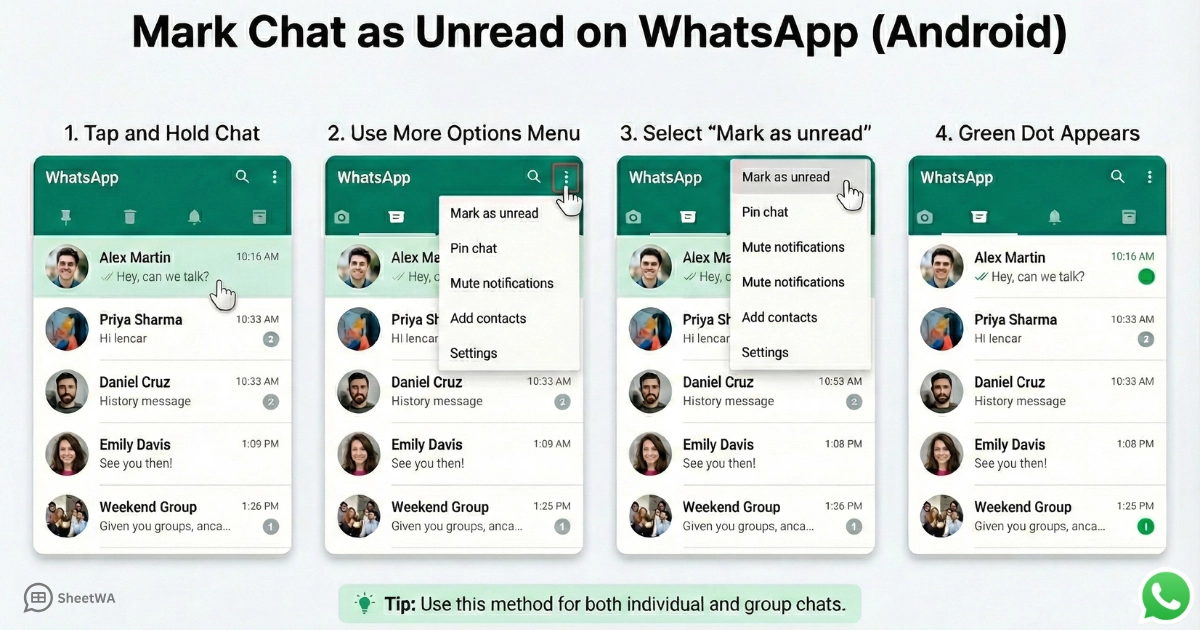
If you use an Android phone, you can easily mark chat as unread on WhatsApp. This feature helps you remember which conversations need your attention later. You might find it useful when you open a chat but do not have time to reply right away. Let’s walk through the steps together.
Step-by-Step for Android
Tap and Hold Chat
Open the WhatsApp application on your Android device.
Scroll through your chat list and find the conversation you want to mark as unread.
Press and hold the chat. You will see the chat get highlighted, and a menu bar appears at the top of your screen.
Use More Options Menu
Look at the top-right corner of your screen. You will see a three-dot icon. Tap on it to open the menu.
From the dropdown, select the mark as unread option. Once you do this, a green dot will appear next to the chat. This dot reminds you that you still need to reply.
Tip: You can use this method for both individual and group chats. The steps stay the same, so you do not need to learn anything new for different types of conversations.
Tips for Android Users
The mark as unread feature does not actually change the read status for the other person. It only helps you organize your chats. If you want to mark messages as unread for your own reminder, this is the best way.
If you want to mark whatsapp messages as unread quickly, you can use the notification panel. When you get a message, expand the notification and tap mark as unread if the option appears.
The user interface on Android may look a little different depending on your device or the version of WhatsApp you use. Usually, the three-dot menu stays at the top-right corner. If you do not see it, make sure your app is updated.
You can mark chat as unread on WhatsApp for as many chats as you want. There is no limit, so you can keep your important conversations organized.
Remember, when you mark a whatsapp message as unread, it only affects your view. The sender will still see the blue ticks if you have read receipts turned on.
Note: If you want to mark a chat as unread to come back to it later, this feature works great. But it does not remove the blue ticks or hide that you have seen the message.
Using the mark as unread option can help you manage busy days. You will not forget to reply to important chats. Try it out the next time you need a reminder!
Mark WhatsApp Messages as Unread on iOS
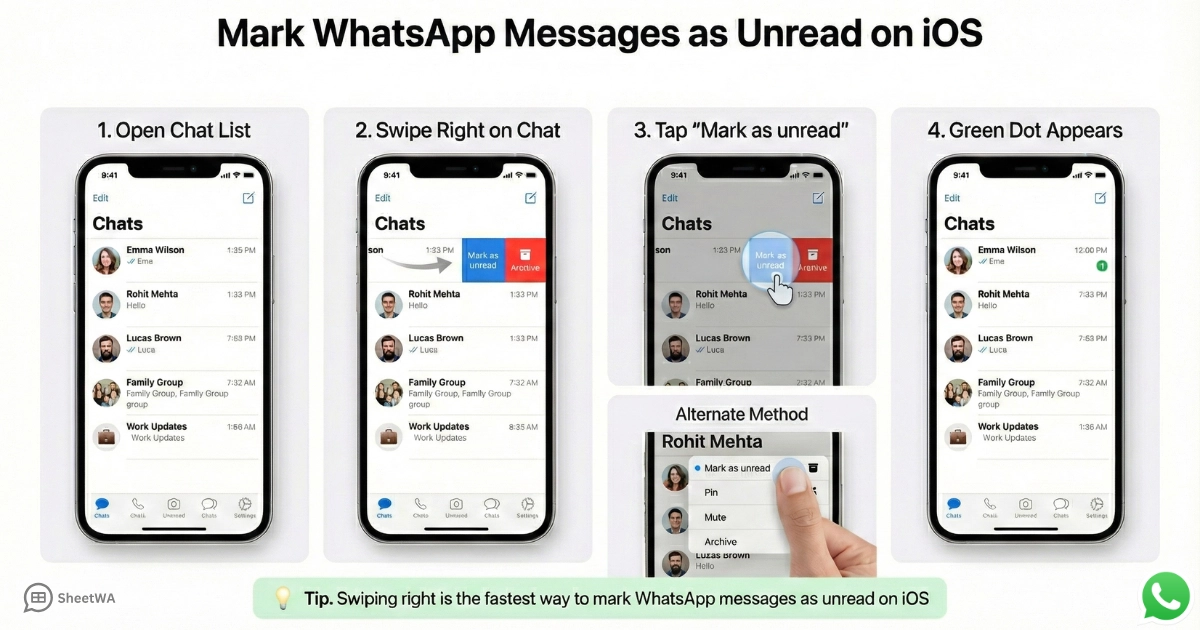
If you use an iPhone, you can mark chat as unread on WhatsApp in just a few taps. This feature helps you keep track of important conversations. You might open a chat and forget to reply. Marking it as unread gives you a visual reminder to come back later. The process feels smooth and quick on iOS.
Step-by-Step for iOS
Tap and Hold Contact Name
You can mark chat as unread on WhatsApp using a simple swipe or tap. Here’s how you do it:
Open the WhatsApp application on your iPhone.
Go to your main chat list.
Find the conversation you want to mark as unread.
Swipe right on the chat. You will see the option to mark as unread pop up.
Tap on mark as unread. A small green dot will appear next to the chat. This dot tells you that you still need to reply.
If you want to mark several chats at once, you can do that too:
Tap the "More Options" button at the top.
Choose "Select Messages."
Pick all the chats you want to mark as unread.
Tap "Unread" in the bottom-left corner.
Select Mark as Unread
You can also long-press on any chat. When you do this, a menu appears. Just tap on mark as unread from the menu. The green dot will show up, making it easy to spot chats you need to revisit.
Tip: Swiping right is the fastest way to mark a WhatsApp message as unread. If you like using gestures, this method saves you time.
Tips for iOS Users
The iOS version of WhatsApp has some unique features that make managing chats easier. You can filter your chats to see only the ones you marked as unread. This helps you focus on messages that need your attention.
Filter Type | Description |
|---|---|
All | Default view of all conversations. |
Unread | Shows only chats you have not read or have marked as unread. Great for organizing replies. |
Groups | Lists all your group chats in one place. |
You can use the "Unread" filter to quickly find chats you marked as unread. This keeps your inbox tidy.
The green dot is your visual cue. It helps you spot chats that need a reply.
You can mark chat as unread on WhatsApp for both individual and group chats. The steps stay the same.
The swipe right gesture feels natural on iOS. You do not need to dig through menus.
If you use the "Select Messages" feature, you can mark multiple chats as unread at once. This is helpful if you want to organize many conversations quickly.
Note: Mark as unread does not change the read status for the other person. It only helps you remember to reply. The sender will still see blue ticks if you have read receipts on.
You can use these features to stay on top of your messages. Mark as unread works well for busy days when you need reminders. Try it out the next time you want to mark WhatsApp messages as unread and keep your chats organized.
Mark a WhatsApp Message as Unread in Group Chats
Group chats can get busy. Sometimes, you read a message and want to remember it later. You can mark group messages as unread on WhatsApp. This helps you stay organized and not miss important replies.
Android Group Chat Steps
You can mark a WhatsApp message as unread in a group chat on Android with just a few taps. Here’s how you do it:
Open WhatsApp on your Android phone.
Find the group chat in your chat list. Make sure you are not inside the chat itself.
Press and hold the group chat name. The chat will get highlighted.
Tap the three dots at the top right corner of your screen.
Select "Mark as unread" from the menu.
A green dot will show up next to the group chat. This dot reminds you to check the chat again. You can use this for as many group chats as you want.
Tip: You can use the same steps for both group chats and individual chats. The process does not change.
iOS Group Chat Steps
If you use an iPhone, you can mark WhatsApp messages as unread in group chats with a simple gesture. Follow these steps:
Open WhatsApp on your iPhone.
In your chat list, find the group chat you want to mark.
Swipe right on the group chat.
Tap the "Mark as unread" option.
A green dot will appear next to the group chat. This dot helps you remember to reply later. You can do this for any group chat in your list.
Note: Swiping right is the fastest way to mark group messages as unread on iOS. It works for both group and individual chats.
Web Group Chat Steps
You might use WhatsApp Web on your computer. You can also mark group chats as unread there. Here’s how:
Open WhatsApp Web in your browser.
Find the group chat in your chat list.
Right-click on the group chat.
Choose "Mark as unread" from the menu.
A green dot will show up next to the group chat. This dot is your reminder to check the chat again.
Tip: Mark as unread on WhatsApp Web works the same way as on your phone. It helps you keep track of important group messages.
When you mark whatsapp messages as unread, you only change how the chat looks for you. Other people in the group will not know you marked the chat. This feature helps you stay on top of busy group conversations and never miss a reply.
What Happens After Mark as Unread
Visual Indicators
When you use the mark as unread feature, WhatsApp gives you a clear visual reminder. You will see a small green dot next to the chat. This dot helps you spot conversations that need your attention. If you have a busy chat list, the green dot stands out. You can quickly find chats you want to revisit. The dot stays until you open the chat again. Once you read the messages, the dot disappears.
You might wonder about notification badges. On iOS, muted chats do not show notification badges for new messages. This helps you focus on important conversations. On Android, you can control notifications for muted chats by changing the 'Show Notifications' setting. This means you decide which chats send alerts. The unread message notification works best when you want to keep track of important chats without getting overwhelmed.
Tip: If you mark a chat as unread, you can use the unread filter to see only those chats. This keeps your inbox organized and helps you reply on time.
Does It Affect Others?
You may think marking a chat as unread changes how others see your messages. It does not. When you mark as unread, only your chat list changes. The sender still sees blue ticks if you have read receipts turned on. Your action does not hide that you have read the message. It only helps you remember to reply later. The feature works the same for group chats and individual chats.
Here is a quick table to show what happens:
Action | What You See | What Others See |
|---|---|---|
Mark as unread | Green dot appears | No change |
Open chat again | Dot disappears | No change |
Read receipts on | Blue ticks visible | Blue ticks visible |
Note: You control your reminders. Others do not know you marked their chat as unread.
Feature Limitations
The mark as unread feature helps you stay organized, but it has some limits. You cannot use it to hide that you have read a message. The sender always sees blue ticks if you have read receipts on. You also cannot mark specific messages as unread inside a chat. The feature works for whole chats only.
Some users worry about bugs or issues. Right now, WhatsApp does not have any known problems with the mark as unread feature. You can use it without trouble. Other bugs may affect message delivery, but they do not impact this feature.
Here are some things to keep in mind:
You cannot undo blue ticks by marking as unread.
The feature does not change notifications for others.
You can only mark whole chats, not single messages.
No known bugs affect this feature at the moment.
Alert: If you want to use mark as unread for reminders, it works well. If you want to hide your activity, it does not help.
You can use this feature to manage your chats and never miss a reply. It keeps your chat list tidy and helps you stay on top of important conversations.
You can mark as unread on WhatsApp by doing these steps. First, pick the chat or group you want. Next, tap the three dots at the top. Then, choose "Mark as unread" from the menu. After that, look for the green dot next to the chat. The green dot helps you remember to reply later.
This feature makes it easier to manage your chats. It also keeps your unread message notification easy to see. You can try other tools like quick replies and scheduled messages. Meta AI can help you get more things done.
Benefit | Description |
|---|---|
Increased Productivity | You can focus on tasks without getting distracted. |
Decluttering Interface | Your chat list stays neat and organized. |
Time-Saving | You clear notifications quickly and save time. |

FAQ
Can I mark only one message as unread in a chat?
No, you can’t mark just one message as unread. WhatsApp lets you mark the whole chat as unread. This works for both group and individual chats.
Will the other person know if I mark their chat as unread?
No, they won’t know. Marking a chat as unread only changes how it looks for you. The sender still sees blue ticks if you read their message.
Does marking as unread remove blue ticks?
No, it doesn’t. If you have read receipts on, blue ticks stay visible to the sender. Mark as unread only helps you remember to reply.
Can I mark multiple chats as unread at once?
Yes, you can! On iOS, tap "Edit," select chats, then tap "Unread." On Android, you need to mark each chat one by one.
Is the unread feature available on WhatsApp Web?
Yes, it is. Right-click any chat on WhatsApp Web and choose "Mark as unread." You’ll see a green dot next to the chat.
Does marking as unread affect notifications?
No, it doesn’t change notifications for others. You still get alerts for new messages. Mark as unread just adds a green dot for you.
Why can’t I see the mark as unread option?
You might need to update WhatsApp. If you still can’t see it, restart your phone or check the app store for the latest version.
Can I use mark as unread for both group and individual chats?
Yes, you can. The steps are the same for both. Mark as unread works for any chat in your list.
